WordPress Form Emails Going to Spam or Not Sending? Here's the Actual Fix
A visitor fills out your contact form, sees the "thanks, we got it" confirmation, and you never see the email. Nothing on the form itself looks broken — because it isn't. This is almost always an email delivery problem, not a form problem, and it has a specific, well-understood fix that most people never get to because they spend the debugging time on the wrong layer.
Why this happens, specifically
WordPress ships with no real email infrastructure of its own. By default, every notification a plugin sends — including your form's — goes out through PHP's mail() function, which hands the message to whatever mail transport agent your hosting server has installed and calls it done. A few concrete problems with that:
- Many hosts block or heavily rate-limit outgoing
mail()specifically because it's a common spam vector when left wide open, which means your own legitimate notification emails get caught in the same net. - The sending server has no reputation with major providers. Gmail, Outlook, and other large mail providers weight sender reputation heavily — a shared hosting IP with no sending history is treated with default suspicion, independent of your message content.
- No SPF or DKIM alignment. Without these DNS-level authentication records lining up between your sending domain and your actual mail transport, a receiving server can't verify the email is legitimately from your domain — which is exactly the signal spam filtering is designed to catch.
None of this is specific to any one form plugin. It's a WordPress-and-hosting-level gap that every plugin's notification email runs into equally, unless something is done about it specifically.
The actual fix: real SMTP delivery
Connecting a real SMTP provider routes your outgoing mail through infrastructure that actually has sending reputation and supports proper authentication — instead of your host's bare, unauthenticated default setup.
Step-by-step
- Pick a provider. Gmail/Google Workspace and Microsoft 365 are the easiest starting points if you already use one for your business email — the free tier covers typical contact-form volume comfortably. Amazon SES, SendGrid, Mailgun, Brevo, Postmark, and Zoho are all solid dedicated options if you want something purpose-built for transactional mail specifically.
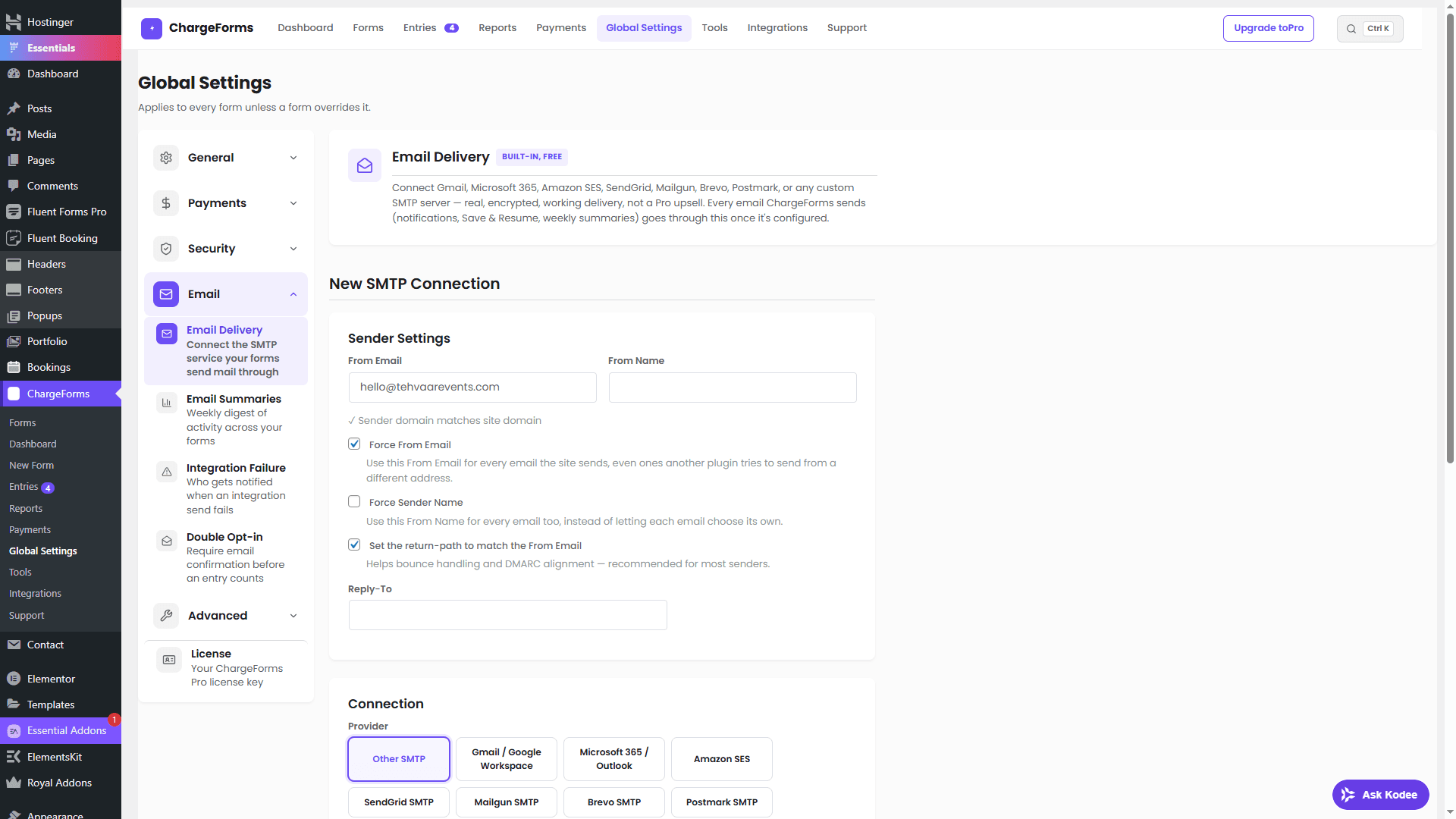
- Set your sender identity first. The "From" email should match your actual sending domain, not a generic placeholder — a mismatch here undermines SPF/DKIM alignment even if the connection itself is configured correctly.
- Enter the SMTP connection details — host, port, encryption, and credentials for your chosen provider. Most WordPress form plugins with SMTP support offer one-click setup for major providers, falling back to a generic "any custom SMTP server" option for everything else.
- Send a real test email from the same screen, before trusting it for anything else. This is the step people skip — a settings screen that saves without an error is not proof delivery actually works.
- Check the spam folder the first few times, not just the inbox. A new sending setup sometimes needs a short reputation-building period even when everything is configured correctly, and confirming it lands correctly (even if briefly flagged) tells you it's working, not broken.
- Force the From Email and Sender Name if your plugin supports it, so every email the site sends — not just form notifications — uses the same authenticated identity consistently, rather than different plugins each picking their own sender address.
Why the "From" address specifically trips people up
A generic wordpress@yoursite.com or a mismatched personal email as the "From" address is one of the most common, least obvious causes of spam-flagged form emails — it looks fine to a human reading it, but it's exactly the kind of domain mismatch a spam filter is built to catch, independent of whether SMTP itself is configured. Setting the return-path to match the From Email specifically helps with bounce handling and DMARC alignment, which matters more than it sounds like it should for inbox placement over time.
What SMTP delivery doesn't fix
Worth being honest about the limits here:
- It doesn't guarantee inbox placement forever. Sending reputation is built over time and can be affected by spam complaints, bounce rates, and content patterns — a correct SMTP setup removes the most common structural cause, not every possible one.
- It doesn't fix a genuinely broken notification configuration — if the notification email address itself is wrong, or the notification is disabled entirely, SMTP delivery has nothing to actually deliver.
- It's not a substitute for checking your plugin's own delivery log, if it has one — a log showing an actual bounce or rejection reason is more useful for diagnosing a specific failure than assuming SMTP alone will silently fix everything going forward.
Delivery logging: the part that turns "it's probably fine" into "I can actually check"
A real delivery log — not just "email sent," but the actual outcome (delivered, bounced, rejected, and why) — is what separates a plugin you have to trust blindly from one you can actually verify. If a specific submission's notification failed, a log entry showing that (and ideally retrying automatically) means you find out from your own dashboard, not from a customer telling you they never heard back.
The bottom line
If your WordPress form's emails are landing in spam or not arriving, the fix is very rarely "switch form plugins" — it's almost always connecting real SMTP delivery, since the actual root cause (WordPress's default, unauthenticated mail() function) is the same regardless of which plugin generated the notification. Connect a real provider, get the sender identity right, send a real test, and check your delivery log rather than assuming. See the Email Delivery documentation for the exact setup steps in ChargeForms specifically, where one SMTP connection is included free.
Frequently asked questions
Why do WordPress form notification emails go to spam or not arrive at all?
In the large majority of cases, it's not the form plugin — it's how WordPress sends email by default. WordPress uses PHP's mail() function out of the box, which many hosts either block outright, rate-limit heavily, or deliver from a server IP with no sending reputation and no SPF/DKIM alignment with your domain. Receiving mail servers (Gmail, Outlook, etc.) treat that as a strong spam signal regardless of how well-configured your actual form is.
Does installing an SMTP plugin actually fix this?
Yes, in the sense that matters — SMTP delivery routes your outgoing mail through a real provider (Gmail, Microsoft 365, Amazon SES, SendGrid, and others) that has actual sending reputation and supports proper authentication. It doesn't guarantee every email lands in the inbox forever (that also depends on content, sending domain reputation over time, and recipient-side filtering), but it removes the single most common root cause, which is sending through your host's unauthenticated default mail setup in the first place.
What is SPF, DKIM, and why does the 'from' address matter?
SPF and DKIM are DNS records that let a receiving mail server verify an email claiming to be from your domain was actually authorized to send from it. When your 'from' address doesn't match your sending domain, or there's no SPF/DKIM alignment at all, that mismatch is exactly the kind of signal spam filters are built to catch — independent of whether the actual message content looks legitimate.
Is a real SMTP connection free, or does it require a paid plugin?
The SMTP connection itself is typically free regardless of provider — Gmail, Microsoft 365, and Amazon SES all have generous free tiers for transactional volume a typical contact form generates. Whether your specific form plugin gates SMTP configuration behind a paid tier varies — on ChargeForms, one SMTP connection is included free, with additional connections as a paid-plan feature for sites that need to send through multiple provider identities.
How do I actually confirm email delivery is fixed, not just configured?
Configuring SMTP correctly and confirming delivery works are two different things — always send a real test email from the same screen where you configured the connection, check it actually arrives (including checking spam folders the first few times), and only then trust it for real form submissions. A settings screen that saved without an error is not the same as proof an email actually got delivered.
Related posts
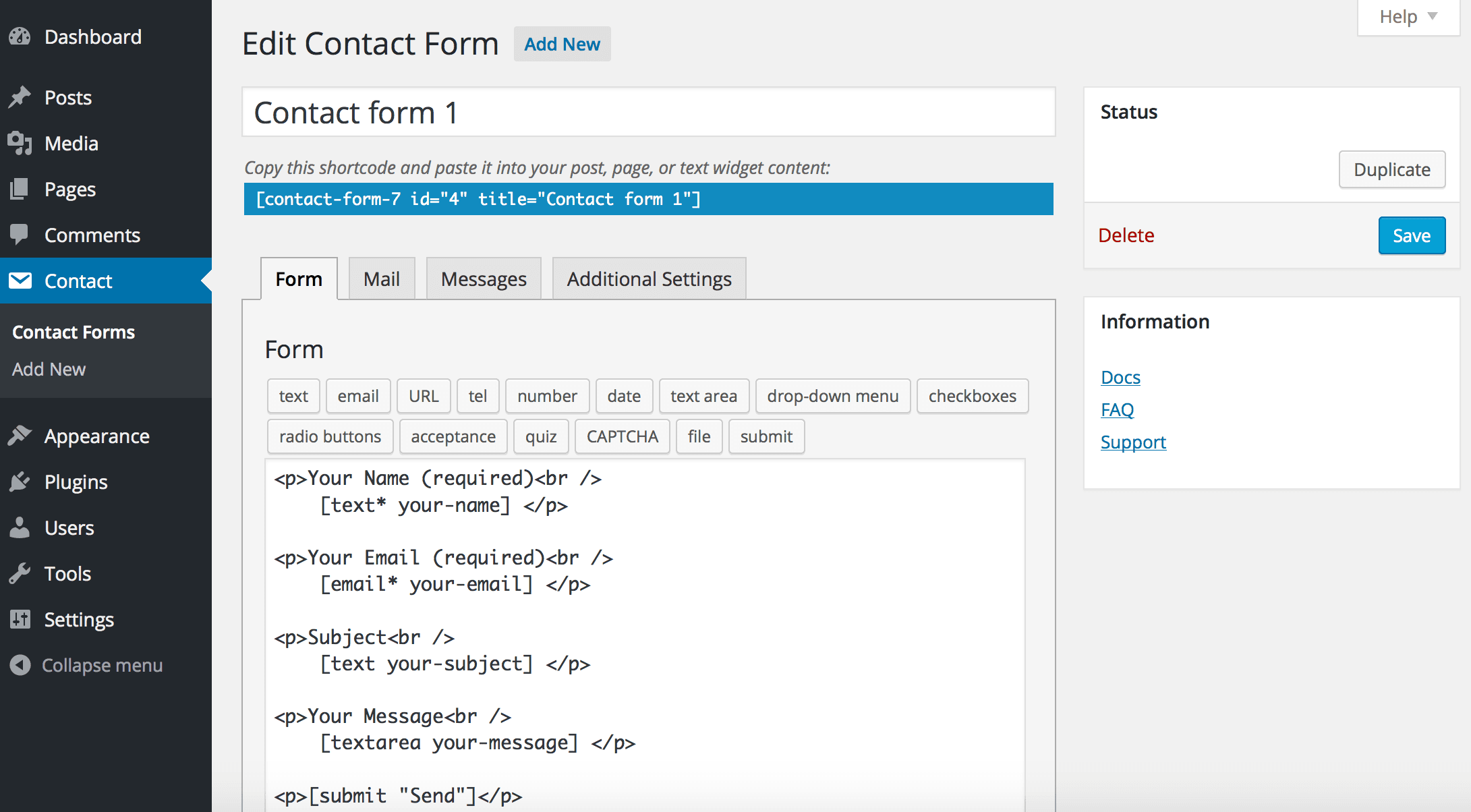
Contact Form 7 Is in Maintenance Mode: What That Actually Means
Contact Form 7's creator confirmed at WordCamp Asia 2026 that version 6.2 is the last feature release — the plugin now gets security patches only. Here's what changes, what doesn't, and what to actually do about it.