How to Export WordPress Form Entries to CSV (and Google Sheets)
Getting form submissions out of WordPress and into a spreadsheet, CRM, or backup file is one of the most common practical needs for any site collecting more than a handful of entries — and one of the most inconsistently documented, since every plugin puts the option in a slightly different place. Here's how it actually works, plus the two real paths to automatic Google Sheets sync and a security detail worth checking that most tutorials skip.
Exporting to CSV, step by step
The general process is close to universal across WordPress form plugins:
- Go to the entries/submissions screen for the form you want to export — usually a dedicated menu item or tab, separate from the form builder itself.
- Select Export (sometimes under a "Tools" or "..." menu rather than a prominent button).
- Choose which fields to include. Most export tools let you select a subset of fields rather than exporting every column — useful if a form has internal-only fields (admin notes, internal routing data) you don't want in a file you might share externally.
- Set a date range if you only need recent entries rather than the full history — useful for a recurring monthly export rather than re-exporting everything each time.
- Download the CSV file. It opens directly in Excel, Google Sheets (via File → Import), Numbers, or any spreadsheet tool, since CSV is a universal plain-text format every spreadsheet application reads natively.
Real use cases for exporting entries
Board and stakeholder reporting. Nonprofits and membership organizations regularly need a clean export of applications, donations, or volunteer sign-ups for board meetings or grant reporting — a periodic CSV pull, sometimes turned into a simple pivot table or chart in a spreadsheet, is often the entire "reporting pipeline" a smaller organization needs, without a dedicated BI tool.
CRM backfill and migration. Moving from one CRM to another, or getting historical lead data into a CRM for the first time, usually starts with a CSV export from the form plugin that collected the leads, reformatted to match the target CRM's import format — a process worth doing even if a native integration exists going forward, specifically to backfill everything collected before the integration was set up.
Compliance and audit trails. Some regulated industries need a periodic, dated export of form submissions as part of a documented compliance process — not because the live entries in WordPress aren't sufficient, but because an auditor or regulator specifically wants a point-in-time snapshot that isn't subject to later edits.
Data analysis beyond what the plugin's own reporting offers. Even a form plugin with decent built-in analytics has limits — cross-referencing form data against a separate dataset, building a custom chart type the plugin doesn't offer natively, or running a statistical analysis on response patterns all benefit from getting the raw data into a tool built for that (a spreadsheet, a BI tool, a notebook environment) rather than working within the constraints of the form plugin's own dashboard.
Backup and disaster recovery. Independent of any specific reporting need, periodic entry exports function as a lightweight backup layer specifically for submission data — useful even alongside a full-site backup solution, since a full-site restore is a heavier operation than pulling a recent CSV if what actually needs recovering is just recent form entries.
How export capability actually compares across plugins
Export itself is close to universal, but the depth varies more than it first appears:
- WPForms: CSV export built in on all tiers including Lite, with a native Google Sheets add-on on paid plans for real-time sync.
- Gravity Forms: CSV, Excel, and XML export options — more format variety than most competitors, reflecting its more developer/power-user-oriented audience.
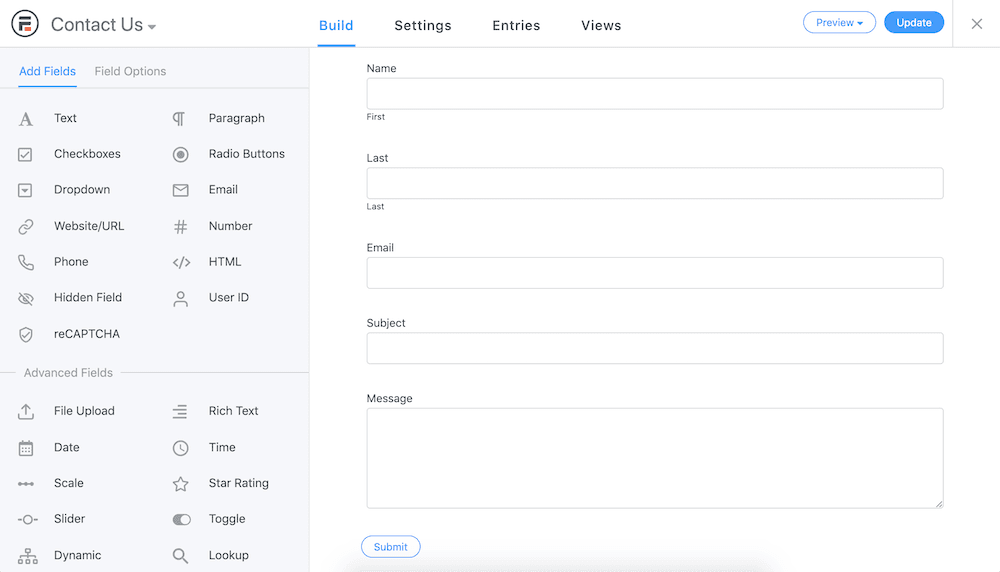
- Formidable Forms: CSV and Excel export, plus its distinctive "Views" feature, which can display submitted entry data back on the front end (a directory, a leaderboard, a listings page) — a genuinely different capability from a flat file export, worth knowing about if the actual goal is showing entry data somewhere rather than just extracting it.
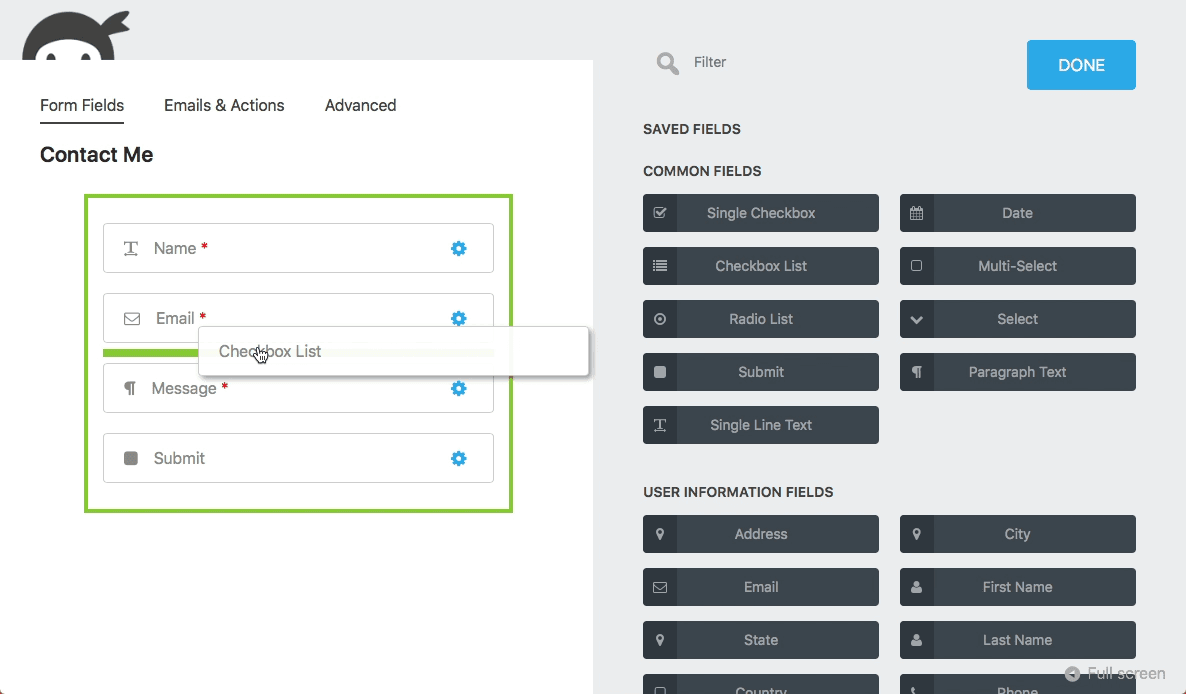
- Ninja Forms: CSV export included on the free Core plugin — one of the more generous free-tier export implementations in the category.
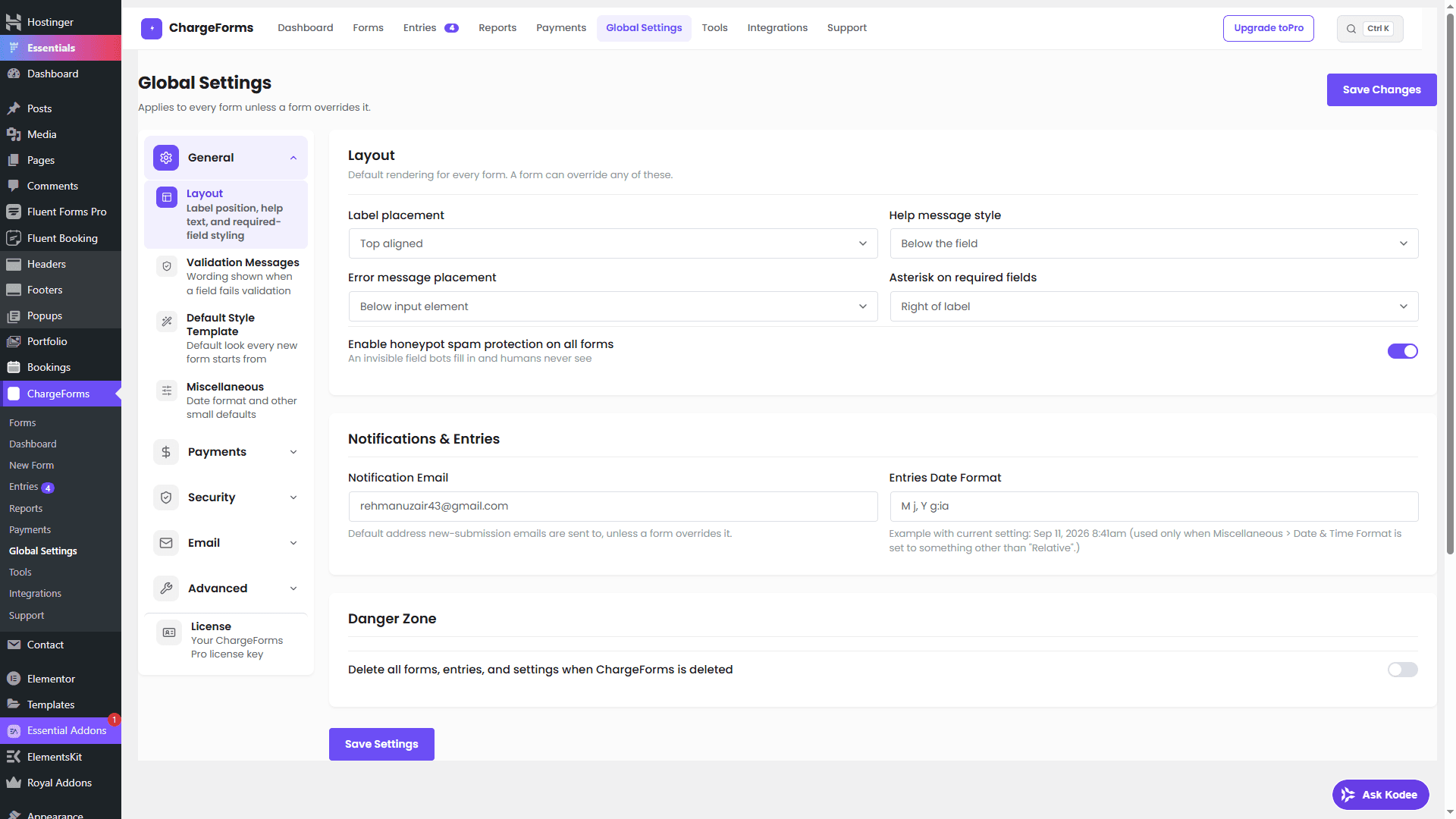
- ChargeForms: CSV export and import, both governed by the same permission-check and nonce-verification pattern as every other admin action, documented in the Entries guide.
The practical takeaway: if export format flexibility (Excel/XML specifically, not just CSV) matters for your workflow, that narrows the field faster than checking for export capability alone, since nearly everyone has CSV.
Automating recurring exports for backup purposes
Beyond one-off exports, some workflows need a regular, scheduled pull — a weekly backup of new entries, a monthly report generated automatically rather than manually triggered. A few practical approaches, in rough order of complexity:
- A recurring calendar reminder to manually export — the simplest approach, genuinely sufficient for low-volume forms where automation would be more setup effort than it saves.
- A webhook-fed automation that appends to a running log (a Google Sheet that accumulates every submission in real time, rather than periodic full exports) — effectively turns the "export" into a continuously up-to-date document instead of a periodic snapshot.
- A scheduled task via a site-level backup plugin that includes the form plugin's database tables in its regular backup routine — this protects the underlying data even without a human ever running a manual export, though it's a full-database backup rather than a portable CSV specifically.
- A custom scheduled script (for a technical team) using the plugin's own export functionality programmatically, run via WP-CLI or a cron job, for teams that need export automation beyond what a no-code webhook path provides.
Which of these makes sense depends entirely on volume and how critical continuous backup actually is for your specific use case — a low-traffic contact form and a high-volume donation form during a fundraising campaign have very different reasonable answers here.
The two real paths to automatic Google Sheets sync
Manual CSV export works, but requires someone to remember to do it. If entries need to land in a spreadsheet automatically, in real time, there are two genuinely different approaches:
A native Google Sheets add-on. Some plugins (WPForms and Formidable Forms both offer this, typically as a paid add-on) push each new submission directly to a specified Google Sheets spreadsheet the moment it's submitted, with no export step at all. This is the simplest option when your plugin supports it natively, since it requires no separate automation platform.
A webhook connected to an automation platform. For plugins without a native Google Sheets add-on (or a free tier that doesn't include one), a generic webhook — sending submission data as a POST request to any URL — can feed into Zapier, Make, or a similar platform configured to write each incoming submission to a Google Sheet as one step in a broader automation. This path works with any plugin that supports webhooks generically, which is a substantially more common free-tier feature than a dedicated Google Sheets integration specifically. See the full webhook-to-Make walkthrough for the concrete setup steps if this is the path you need.
The practical tradeoff: a native add-on is simpler to set up if your plugin has one, but locks you into that plugin's specific integration. The webhook + automation-platform path takes a few more minutes to configure but works identically regardless of which form plugin you're using, and the same webhook can simultaneously feed multiple destinations (a Slack notification and a Google Sheet and a CRM record, all from one submission) rather than being limited to spreadsheet sync alone.
The security detail most tutorials skip: CSV/formula injection
This is worth understanding even if you never touch a line of code, because it affects whether opening an exported file is actually safe. Spreadsheet applications (Excel, Google Sheets, LibreOffice Calc) interpret a cell's content as a formula if it starts with specific characters — =, +, -, or @. If a form field allows free text and a submission contains a value like =1+1 or, more maliciously, a formula designed to make an outbound network request or run a system command, that value can execute as a live formula the moment the exported CSV is opened in a spreadsheet program, not just display as inert text.
This is a real, documented vulnerability class (CSV injection / formula injection), not a theoretical concern — it's been used in real attacks against systems that export user-submitted data to spreadsheets without sanitizing it first. The fix is straightforward on the export side: any field value starting with one of those four characters gets a safe prefix (commonly a single quote, or stripping the leading character) added before being written to the CSV, neutralizing it as a formula while preserving the visible text. This needs to happen in the plugin's own export code — there's nothing a site owner configures to enable it, which is exactly why it's worth confirming your specific plugin actually does this rather than assuming every export feature handles it correctly by default.
What to check before relying on an export feature
- Does the plugin's export sanitize against formula injection? Test directly if you're unsure — submit a test entry with a field value of
=1+1and confirm the exported CSV, when opened, shows the literal text rather than evaluating it as a formula. - Can you select which fields to include, or does export always dump every field? Relevant if a form has fields you don't want in an externally-shared file.
- Does export respect any entry filtering already applied (date range, status, a saved filter) or does it always export the full entry set regardless of what's currently filtered on screen? This affects whether you can reliably do a "just this month's entries" export without manually re-filtering every time.
- Is there a corresponding import feature, if you ever need to move entries between sites or restore from a backup — export-only support is more common than plugins realize site owners might need the reverse direction too.
- For automatic sync, does your plugin offer a native Google Sheets add-on, or will you need the webhook + automation-platform path? Confirm this before assuming a specific integration exists, since it varies significantly by plugin and by tier within a plugin.
Data protection considerations when exporting personal information
If exported entries include personal data — names, emails, addresses, payment references, anything covered by GDPR or a similar regulation — exporting that data to a CSV file changes where a data-protection obligation actually applies, worth being deliberate about rather than assuming the original platform's protections carry over automatically:
- A deletion request now has to cover exported copies, not just the original database record. If someone exercises a right-to-erasure request and their data exists both in WordPress and in three CSV exports sitting on different team members' laptops, deleting only the WordPress entry doesn't actually fulfill the request — this is a genuinely easy gap to create unintentionally through routine exporting.
- Exported files inherit none of the access controls the original system had. A WordPress entry might be restricted to users with a specific capability; the moment it's exported to a CSV and emailed or shared via a general-access folder, that access control is gone entirely — the file is as accessible as wherever it's stored.
- Consider whether an export actually needs every field, rather than defaulting to exporting everything. A report that only needs aggregate counts or non-personal fields doesn't need names and emails included, and excluding them at export time is a simpler compliance posture than managing access to a file that has them.
- Set a retention expectation for exported files specifically — if your organization has a data retention policy for the original entries, decide whether exported copies follow the same policy or need their own, since "how long do we keep this" is easy to define for a database table and easy to forget entirely for a file sitting in a downloads folder.
Using exported data safely and responsibly
A few practical habits worth adopting once entries are outside WordPress and living in a spreadsheet or another system:
- Treat an exported file with the same sensitivity as the original data. A CSV of form entries containing names, emails, or payment references carries the same privacy obligations as the data did inside WordPress — it doesn't become less sensitive just because it's now a file on someone's desktop rather than a database row.
- Delete exported files you no longer need, rather than letting them accumulate in a downloads folder indefinitely — this is directly relevant if any exported data includes personal information subject to a retention policy or a deletion request.
- Be deliberate about who has access to a shared spreadsheet that entries are synced into automatically — a real-time Google Sheets sync is convenient, but a spreadsheet shared broadly (or set to "anyone with the link") defeats whatever access controls existed on the original WordPress entries.
- Version or back up exports you rely on regularly for reporting, rather than treating the most recent export as the only copy — a spreadsheet is easy to accidentally overwrite or corrupt in a way a database table with proper access controls generally isn't.
The bottom line
CSV export is close to a universal feature across WordPress form plugins, and it's worth confirming two specific things about your own setup that most basic tutorials don't cover: whether the export is actually sanitized against formula injection, and which of the two real paths (native add-on vs. webhook automation) gets you to automatic Google Sheets sync if manual export isn't sufficient for your workflow. ChargeForms' own export/import is documented in full in the Entries guide, including the permission and nonce checks every export action goes through.
Frequently asked questions
How do I export WordPress form entries to CSV?
Nearly every WordPress form plugin has a built-in Export option in its entries/submissions screen — select the form, choose which fields and date range to include, and download a CSV file that opens directly in Excel, Google Sheets, or Numbers. The exact menu location varies by plugin but the underlying feature is close to universal.
Can WordPress forms sync to Google Sheets automatically, without manual export?
Yes, through one of two paths: a plugin's native Google Sheets integration (a paid add-on on some plugins, like WPForms and Formidable Forms) that pushes each new submission to a spreadsheet in real time, or a webhook connected to an automation platform like Zapier or Make that writes each submission to a Google Sheet as part of a broader automation. The webhook path works with any plugin that has generic webhook support, not just ones with a dedicated Google Sheets add-on.
Is CSV export from a WordPress form safe?
It can carry a real risk called CSV/formula injection if a submitted field value starting with =, +, -, or @ isn't neutralized before being written to the export file — spreadsheet software interprets a leading = as the start of a formula, which a malicious form submission can exploit to run a formula (including ones that make outbound network requests) the moment the exported file is opened. A properly built export feature strips or escapes these characters before writing the file; it's worth confirming your plugin actually does this rather than assuming it does.
What's the difference between exporting entries and using a webhook?
Export is a manual, on-demand action — you choose when to pull a CSV snapshot of existing entries. A webhook is automatic and real-time — it fires the moment a new entry is created, pushing that single submission's data to another system immediately, without anyone needing to remember to run an export. They're complementary, not competing: export for periodic full-data pulls or backups, webhooks for real-time sync into another tool.
Can I import entries back into WordPress from a CSV?
Some plugins support this specifically for migrating entry data between sites or restoring from a backup -- confirm your plugin supports import, not just export, if that's a requirement, since the two directions aren't always both implemented even when one is.
Related posts
Contact Form 7 Is in Maintenance Mode: What That Actually Means
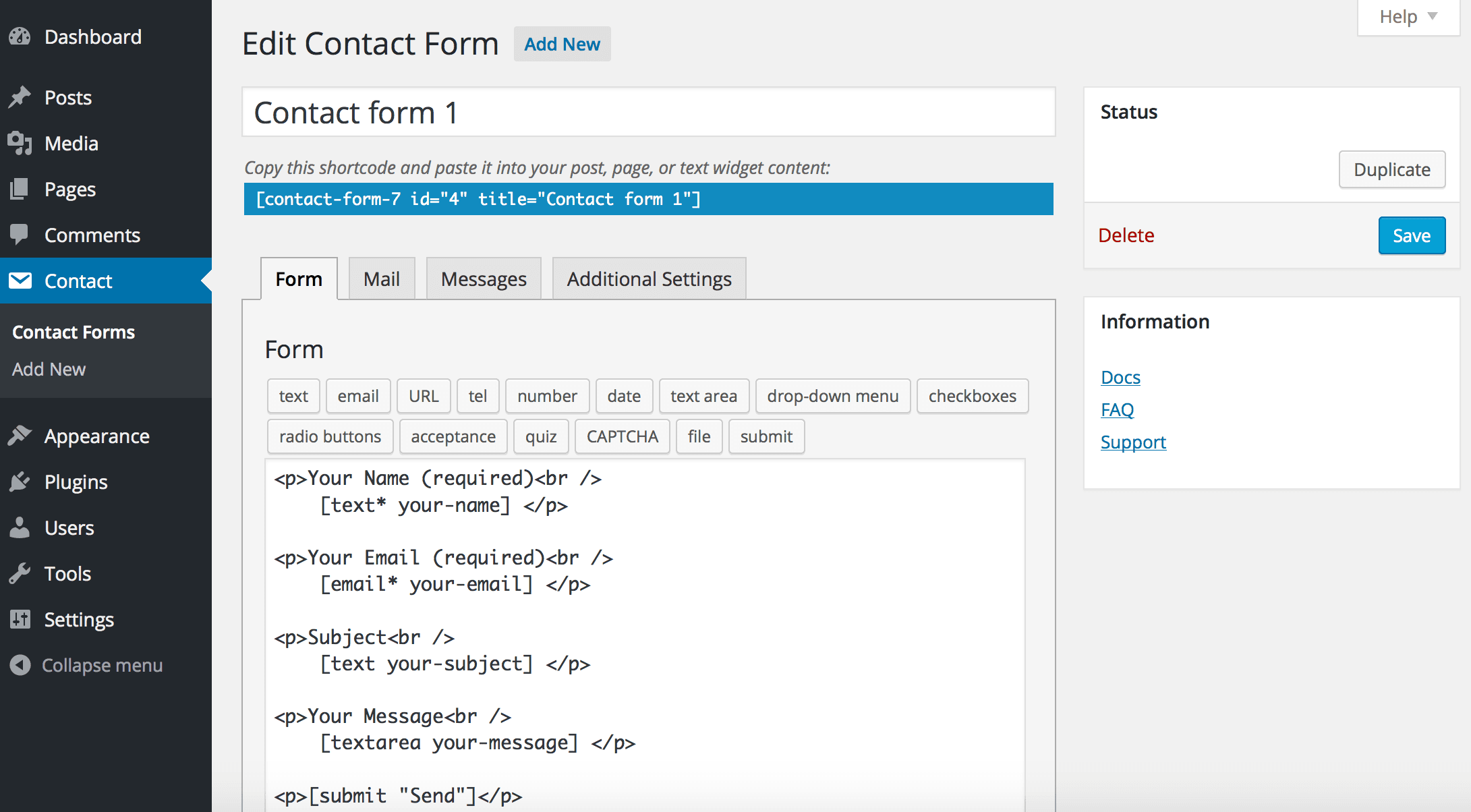
Contact Form 7's creator confirmed at WordCamp Asia 2026 that version 6.2 is the last feature release — the plugin now gets security patches only. Here's what changes, what doesn't, and what to actually do about it.