How to Create a Lead Generation Form in WordPress (Step by Step)
If your website gets enquiries but your team still has to sort incomplete emails, a dedicated WordPress lead generation form can make the next step much clearer.
The goal is not to ask every possible question. The goal is to collect enough useful context that a real person can respond quickly and appropriately.
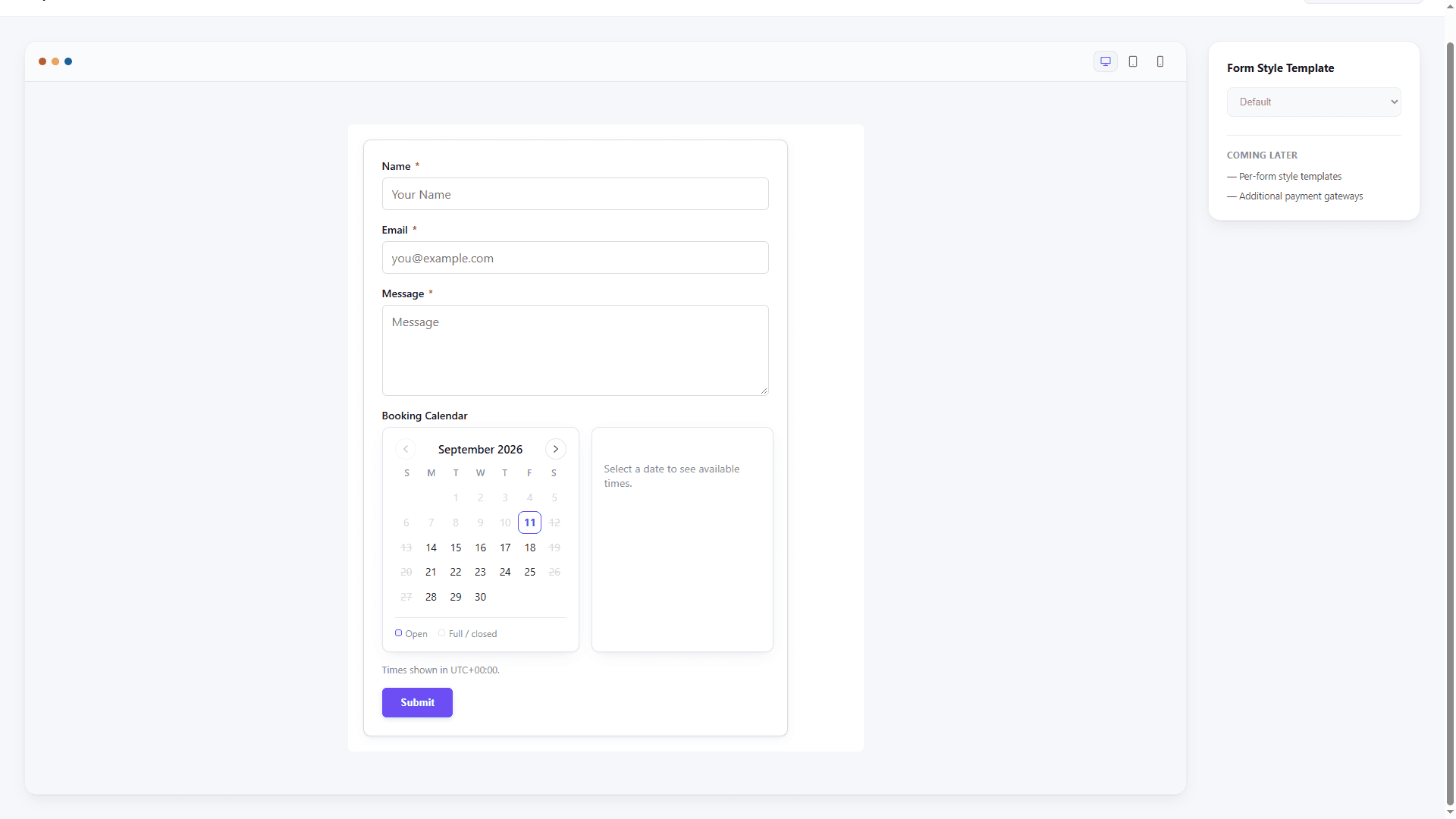
This guide shows a practical way to create a lead capture form in WordPress with ChargeForms.
1. Decide what the form should qualify
Before opening the builder, write down the decision the form should help your team make.
Examples:
- Is this enquiry for web design, maintenance, or a different service?
- Is the visitor looking for a quote or a consultation?
- Is the requested project within the type of work you offer?
- What is the best way and time to follow up?
That decision determines which fields are useful. It also prevents the common mistake of turning a short enquiry form into a long application form.
2. Start with a small set of lead capture fields
A good first version usually includes:
- Name — use the label your team naturally uses when replying.
- Email address — validate it and explain why it is needed.
- Service or enquiry type — a dropdown or radio field keeps answers consistent.
- Project details — give people enough room to explain what they need.
- Timeline or budget — include these only if they affect qualification.
You can always add a phone number, company, file upload, or preferred contact time later. Start with the smallest version that gives your team a useful next action.
3. Add conditional logic only where it helps
Conditional logic makes a form feel shorter because visitors see only the questions that apply to them.
For example:
- If Service is “Website redesign,” show Current website URL.
- If Service is “Branding,” show Brand assets upload.
- If Contact preference is “Phone,” show Phone number and Best time to call.
Keep the rules easy to explain. If a visitor cannot predict why a field appeared, the form may feel confusing rather than intelligent. ChargeForms lets you build these rules visually and keeps the form output editable after you save it.
4. Make the next step obvious
After submission, tell the visitor what happened and what to expect.
A useful confirmation should include:
- A clear success message
- Whether the team will reply by email or phone
- A realistic response window, if you have one
- A link to a relevant page, guide, or booking flow
Avoid promising a response time you cannot consistently meet. A precise, honest confirmation is better than an impressive-sounding promise.
5. Configure the notification before publishing
Send an internal notification to the person or team responsible for the enquiry. Include the submitted fields in a readable order and use a subject that identifies the form.
For example:
New website enquiry —
If different services go to different people, use a routing rule based on the service field. Always test each route with a real submission before sending traffic to the page.
6. Protect the form and the data
A lead form is part of your site’s security and privacy surface. Before publishing:
- Turn on the available spam protection.
- Use server-side validation as well as browser validation.
- Ask only for information you genuinely need.
- Add a short privacy explanation near any personal-data field.
- Decide who can access stored entries in WordPress.
- Test the form while logged out, on mobile, and with invalid values.
Do not put sensitive information in a URL query string after submission. Keep the confirmation page free of submitted personal data.
7. Review entries and improve the questions
Once the form is live, review the first submissions for patterns:
- Are people choosing “Other” often?
- Are project descriptions too short to qualify?
- Are visitors abandoning the form at one particular question?
- Does the team have enough context to reply without another email?
Use those observations to improve the form. Removing one confusing field can be more valuable than adding three new ones.
A simple ChargeForms workflow
With ChargeForms, the workflow is:
- Open ChargeForms → New Form and start with a lead or quote template.
- Add the fields your qualification decision requires.
- Configure conditional logic for the few branches that matter.
- Set the confirmation message and email notification.
- Publish the form with its shortcode or supported page-builder block.
- Review submissions in ChargeForms → Entries and refine the questions over time.
If you are starting from a description rather than a blank canvas, try the free form idea generator. For a deeper overview of the product, see the ChargeForms features page and the guide to conditional logic.
Final checklist
Before publishing your WordPress lead generation form, confirm that:
- Every required field has a clear label.
- The form can be completed comfortably on a phone.
- Conditional fields appear only when relevant.
- Confirmation and notification emails both work.
- Spam protection is enabled and tested.
- Stored entries are visible only to the right WordPress users.
- You have completed a test submission while logged out.
A lead form does its job when it gives the visitor a clear path forward and gives your team enough context to respond. Keep the first version focused, test it with real scenarios, and improve it from the questions people actually ask.
Frequently asked questions
What is a lead generation form in WordPress?
A lead generation form collects the details a business needs to follow up with a potential customer, such as a name, email address, project need, budget, or preferred contact time. It can be embedded on a landing page, service page, or campaign page.
How many fields should a lead generation form have?
Use the fewest fields that still help you qualify the enquiry. Name and email are usually enough for an initial contact form; add a service, budget, or timeline field only when the answer changes the next step.
Should a WordPress lead form use conditional logic?
Conditional logic is useful when different answers require different follow-up questions. For example, a project budget question can reveal a timeline field only when someone selects a service package.
How do I stop spam submissions?
Use a honeypot or a supported CAPTCHA option, validate fields on the server, rate-limit suspicious submissions, and avoid relying on hidden client-side fields as your only protection.
Can ChargeForms store and manage WordPress leads?
Yes. ChargeForms stores submissions in its Entries screen, where you can search, filter, review, mark entries read, and connect follow-up workflows using the available integrations.