WPForms Conditional Logic: The Complete Guide (2026)
Conditional logic is one of the most-searched features across every WordPress form plugin's documentation, and for good reason — it's the difference between a form that asks everyone the same 20 questions and a form that intelligently adapts to what someone already told you. This guide covers exactly how conditional logic works in WPForms, walks through setting it up step by step, and is honest about which plan you actually need to use it — because it isn't included on the free version, a detail that trips up a lot of people evaluating WPForms based on its free listing alone.
What conditional logic actually does
Conditional logic (WPForms calls its version "Smart Conditional Logic") lets a form dynamically change based on a visitor's answers. Instead of a static list of fields everyone sees regardless of relevance, fields can be shown, hidden, marked required, or skipped based on rules you define — "if this field equals that value, then do this."
Common real-world examples:
- Show a "Company Name" field only when someone selects "Business" rather than "Individual"
- Hide a "Referral Code" field unless someone checks "I have a referral code"
- Require a "Phone Number" field only if someone selects "Call me back" as their preferred contact method
- Send a different confirmation message depending on which product or service someone selected
- Route the notification email to a different team member based on which department a support request is about
Without conditional logic, you either build separate forms for every branching scenario, or you show every field to every visitor regardless of relevance — both of which hurt completion rates and make forms feel bloated.
Does WPForms include conditional logic on the free plan?
No — and this is the detail worth knowing before you install WPForms expecting to use it immediately. WPForms Lite, the free version listed on WordPress.org, does not include conditional logic at all. It's one of three commonly-cited restrictions on Lite, alongside no payment processing and no file uploads.
Conditional logic becomes available starting at the WPForms Plus plan ($199/year for 3 sites). If you're currently on Lite and trying to add a conditional rule, you'll hit an upgrade prompt the moment you try.
How to set up conditional logic in WPForms (step by step)
Assuming you're on Plus or higher, here's the general process:
- Open the field you want to conditionally control in the WPForms builder, and click into its Advanced or Smart Logic settings tab.
- Toggle on "Enable conditional logic" for that field.
- Choose the trigger field — the earlier field whose answer will control this one.
- Set the condition — equals, does not equal, contains, is empty, and similar comparison operators, depending on the trigger field's type.
- Choose the action — show this field, hide this field, or (on higher plans) require it.
- Add additional conditions if needed, combining them with AND/OR logic to build more complex rules — for example, showing a field only if two separate earlier answers both match specific values.
- Save and preview the form to test the logic actually behaves as expected before publishing.
Once configured, conditional rules apply live in the browser as a visitor fills out the form — there's no page reload or server round-trip involved, so fields appear and disappear instantly as answers change, which is part of why conditional logic reads as a much smoother experience than the alternative of branching to entirely separate form pages.
Beyond individual fields, WPForms' conditional logic can also control form confirmations (a different "thank you" message depending on answers) and notification routing (sending the submission email to a different address based on responses) — both configured through similar condition-builder interfaces in their respective settings tabs, also gated to Plus and above.
What the WPForms builder looks like in practice
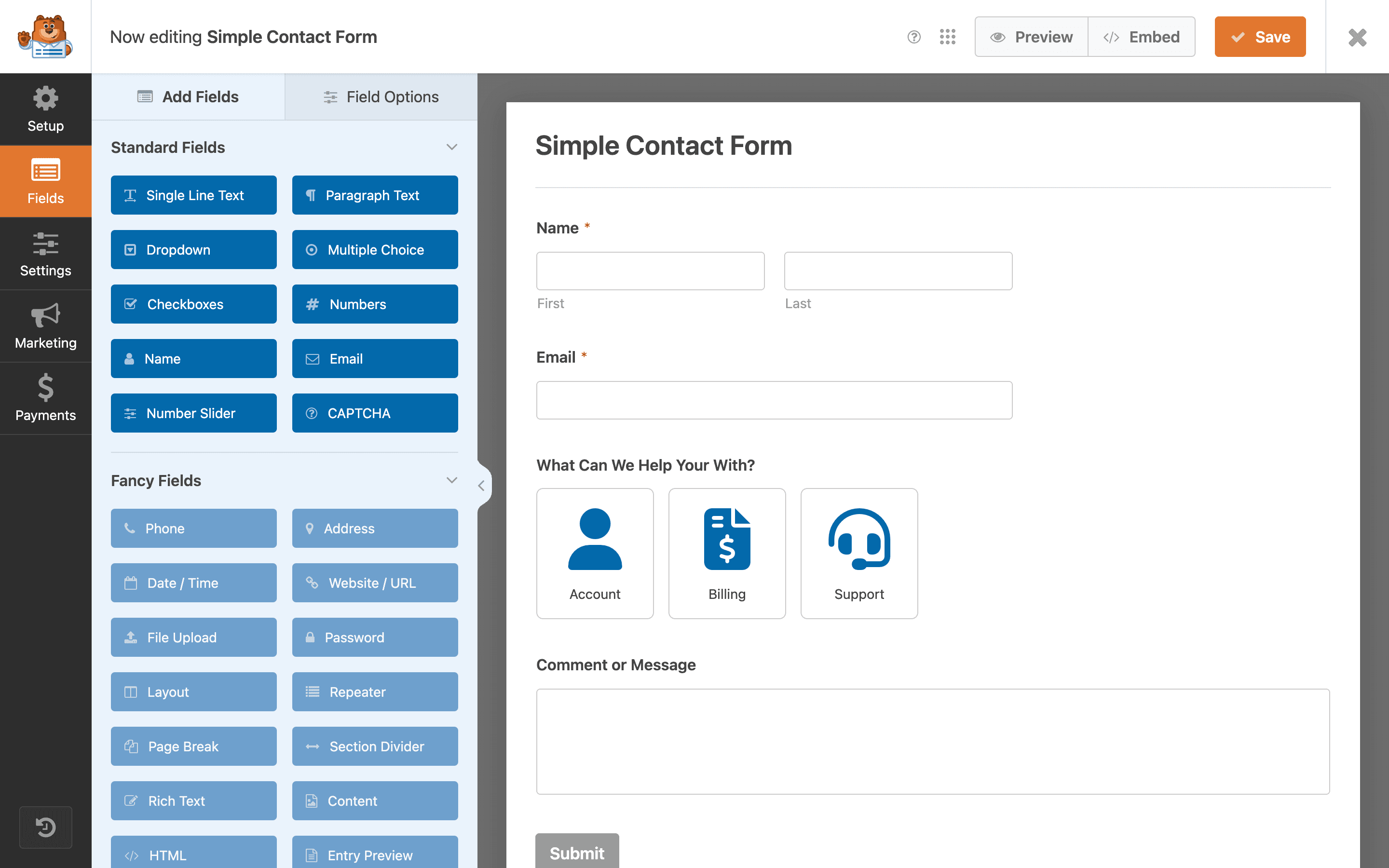
For context on the broader builder experience conditional logic lives inside, here's the actual WPForms interface — the field panel on the left, live preview on the right:
WPForms also has an AI-assisted field configuration tool for things like generating dropdown choices automatically — a genuinely useful feature, though separate from conditional logic itself:

AND/OR combined conditions
On Plus and higher, WPForms supports combining AND and OR operators within a single field's conditional logic — what they market as "Smart Conditional Logic." A practical example: show a "State Tax ID" field only if (Country equals "United States") AND (Business Type equals "LLC" OR Business Type equals "Corporation"). This lets you build genuinely precise rules rather than being limited to one flat condition per field.
This depth is comparable to what Fluent Forms and ChargeForms offer for nested conditional rules, though WPForms' rule-builder UI is generally considered slightly less flexible for very deeply nested logic (four or more combined conditions) than Fluent Forms' dedicated rule-group interface.
Four real conditional logic setups, worked through in detail
Generic instructions are easier to apply with concrete examples. Here are four common conditional logic setups and exactly how the rule would be configured:
Example 1 — Business vs. individual signup. Trigger field: a "Account Type" radio button with options "Individual" and "Business." Condition: show a "Company Name" text field only when Account Type equals "Business." The rule: Show this field if Account Type is Business. A visitor selecting "Individual" never sees the Company Name field at all — it's not just hidden with CSS, it's excluded from the form's submitted data entirely, which also keeps your entry data cleaner.
Example 2 — Callback request routing. Trigger field: a "Preferred Contact Method" dropdown with options "Email" and "Phone Call." Condition: require a "Phone Number" field only when Preferred Contact Method equals "Phone Call," and mark it not required (and hidden) otherwise. This needs two settings on the same field — visibility AND required-state — both tied to the same condition, which is a common point of confusion covered in the troubleshooting section below.
Example 3 — Multi-condition eligibility check. Trigger fields: a "Country" dropdown and an "Age" number field. Condition: show an "Terms for EU Residents" checkbox only if (Country is any EU member state) AND (Age is 16 or older) — combining a list-membership condition with a numeric comparison in the same rule group. This is the kind of setup that specifically requires WPForms' AND/OR "Smart Conditional Logic," not available on simpler single-condition implementations.
Example 4 — Different confirmation by product selected. Trigger field: a "Product Interest" dropdown on a lead-gen form. Condition, applied at the form-confirmation level rather than a single field: show a different "Thank you" message and next-steps text depending on which product someone selected — routing warm leads for the flagship product to a "book a call" confirmation, and leads for a lower-tier product to a "check your email for details" confirmation instead. This uses WPForms' conditional confirmations feature, configured in the Confirmations settings tab rather than on an individual field.
Conditional logic vs. simply removing fields
It's worth being explicit about why conditional logic is usually the better answer, rather than just cutting a form down to fewer fields. The tempting alternative — "just ask fewer questions" — genuinely works for some forms, but it isn't a substitute for conditional logic whenever the extra information is actually needed for some subset of respondents, just not all of them.
A form asking about both "Individual" and "Business" customers needs a Company Name field for the business case — removing that field entirely to keep the form short would mean losing real, needed data for business customers. Conditional logic lets you keep the form short for the individual case (who never sees the field) while still collecting what you need from the business case, which a flat reduction in field count can't do.
The failure mode to watch for is the opposite direction: over-using conditional logic to hide genuinely optional context that most respondents would benefit from seeing, turning a form into a maze of reveal-on-click fields that makes it harder to understand the form's full scope upfront. As a rule of thumb, conditional logic works best when a field is only relevant to some respondents (not applicable to everyone), rather than merely optional for everyone.
Documenting your conditional logic before you build it
For any form with more than a handful of conditional rules, it's worth sketching the logic out on paper (or in a spreadsheet) before opening the form builder at all. A simple table with columns for "Field," "Trigger Field," "Condition," and "Action" forces you to catch contradictory or overlapping rules before they're live — a common real bug is two separate rules that both try to control the same field's visibility under overlapping conditions, producing behavior that depends on rule evaluation order rather than clear intent. This kind of upfront documentation also becomes the reference you'll actually want later, the next time someone on your team (or future you) needs to modify the form and has no memory of why a given field is conditionally hidden.
What if you need conditional logic without paying?
If the free-tier restriction above is the actual dealbreaker, it's worth knowing WPForms isn't the only option, and this specific limitation isn't universal:
Both Fluent Forms and ChargeForms include conditional logic — with combined AND/OR rules — on their free plans. The difference between the two comes down to what else is included alongside it: Fluent Forms' free plan doesn't include payments or a polished multi-step progress bar, while ChargeForms' free plan includes conditional logic, Stripe/PayPal payments, and full multi-step forms together, with no feature paywall at all on the free tier. See the direct ChargeForms vs. WPForms comparison for the full feature and pricing breakdown, or ChargeForms vs. Fluent Forms if that's the more relevant comparison for your use case.
Conditional logic inside multi-step forms
Conditional logic and multi-step forms combine in ways worth understanding separately, since the interaction between them is where a lot of the more advanced (and more error-prone) form configurations happen. Within a single step, conditional logic works exactly as described above — show, hide, or require a field based on an earlier answer, whether that earlier field is on the same step or a previous one.
The more advanced case is conditionally skipping an entire step based on an earlier answer — for example, skipping a "Business Details" step entirely for visitors who selected "Individual" back on step 1, rather than just hiding individual fields within that step. WPForms' native step logic handles field-level conditions well but is more limited for whole-step skipping compared to Fluent Forms Pro or ChargeForms, both of which support step-level conditional branching more directly. If your form genuinely needs to skip entire steps (not just fields within a step) based on early answers, that's worth testing specifically in WPForms' builder before committing to it for a complex multi-step form, since the exact mechanics for whole-step conditions have historically required a workaround (like combining a redirect action with a hidden confirmation step) rather than a single native setting.
Performance considerations with many conditional rules
A form with a handful of conditional rules has no meaningfully different performance profile from a form without any. But forms with dozens of interdependent conditional rules — common in complex application or intake forms — can start to show real lag in the builder interface itself (each rule re-evaluation on every keystroke adds up) and, less commonly, a slight delay in the live form as the browser evaluates every active rule on each field change.
In practice this rarely becomes a genuine problem below roughly 15-20 active conditional rules on a single form. Past that point, it's worth testing the live form's responsiveness on a mid-range mobile device (not just a fast desktop), since conditional logic evaluation happens client-side in JavaScript and lower-powered devices feel any inefficiency here more than a development machine will.
Conditional logic and data minimization
There's a data-privacy angle to conditional logic that's easy to overlook: fields that are conditionally hidden and never shown to a given visitor generally aren't collected at all for that submission, not just visually hidden while still being recorded. This matters for GDPR and similar data-minimization requirements — if a field like "Reason for cancellation" only applies to a subset of respondents, showing it conditionally rather than unconditionally means you're not collecting (and later having to justify retaining) irrelevant personal data from everyone else who filled out the form.
This is a genuine, if secondary, argument for using conditional logic more liberally rather than less: beyond the UX benefit of a shorter-feeling form, it also keeps the actual dataset you're collecting tighter and more clearly justified field-by-field, which is directly relevant if your organization has to document a legal basis for each piece of personal data it collects.
Troubleshooting conditional logic that isn't working
A few issues account for most conditional-logic problems people report, across every plugin, not just WPForms:
- The trigger field's value doesn't exactly match the condition. Conditional rules are usually exact-match by default — a trailing space or different capitalization in a dropdown option can silently break the rule. Double-check the exact option value, not just how it displays.
- The condition is set on the wrong field. It's easy to accidentally set a show/hide condition on the trigger field itself instead of the field you want controlled — always double-check which field the rule is actually attached to.
- Caching is showing a stale version of the form. If you've just added or changed a conditional rule and it doesn't seem to be working, clear any page or object caching plugin before assuming the logic itself is broken.
- A required field is hidden by default and never gets shown. If a field starts hidden and is also marked required, some builders will still block submission on that hidden required field unless the "required" state is also tied to the same condition — check that required and visibility are conditioned together, not just visibility alone.
Real 3-year cost comparison
Since conditional logic specifically is what pushes many people from WPForms Lite to a paid tier, it's worth seeing what that actually costs over a realistic ownership period rather than just the first year's sticker price:
WPForms' Plus plan is billed annually, so three years of ownership means three renewal payments — $597 total, assuming pricing doesn't increase over that period (renewal pricing has historically stayed flat for WPForms, but isn't guaranteed). ChargeForms and Fluent Forms both include conditional logic on their permanently free plans, so the same three-year period costs nothing for this specific feature on either. This isn't a complete cost comparison — WPForms' Plus tier includes other features beyond conditional logic that factor into whether it's worth it for your specific use case — but it isolates the actual cost of this one specific decision.
How conditional logic compares across page-builder form modules
It's worth a brief note on a different category entirely: page builders like Elementor and Divi ship their own built-in form modules with basic conditional logic support, separate from dedicated plugins like WPForms. These tend to be adequate for simple show/hide rules tied to a form already built inside that page builder's ecosystem, but generally lack the AND/OR rule combination, conditional confirmations, and conditional notification routing that a dedicated form plugin like WPForms, Fluent Forms, or ChargeForms provides. If you're already committed to a page builder for the rest of your site and only need very basic conditional logic on one simple form, the built-in module can be sufficient — but for anything with genuinely branching logic across multiple conditions, a dedicated form plugin remains the more capable choice.
When conditional logic isn't the right tool
Not every branching form requirement is actually best solved with conditional logic, and it's worth recognizing the cases where a different approach works better. If a form has fundamentally different purposes for different audiences — a "Get Support" form and a "Request a Demo" form, say — building two separate forms is usually clearer than one form with heavy conditional branching trying to serve both purposes at once. Conditional logic is best suited to variations within one coherent form, not to bolting unrelated forms together under a single entry point.
Similarly, if a condition depends on external data rather than an earlier answer in the same form — showing different content based on which page the form is embedded on, or based on a URL parameter from an ad campaign — that's typically handled through the plugin's dynamic/smart tags or URL-parameter prefill features rather than conditional logic proper, which is specifically about reacting to answers given earlier in the same form submission.
The bottom line
WPForms' conditional logic itself, once you're on Plus or higher, is capable and reasonably easy to configure through its Smart Logic interface — the walkthrough above covers the full process. The detail worth internalizing before you commit to WPForms specifically for this feature: it's not available on the free Lite plan at all, and the cheapest tier that includes it runs $199/year. If that changes your calculus, Fluent Forms and ChargeForms both include conditional logic free — the further deciding factor between those two comes down to whether you also need payments and full multi-step forms included free, which only ChargeForms currently offers across all three at once.
Frequently asked questions
Does WPForms Lite (free) include conditional logic?
No. Conditional logic requires at least the WPForms Plus plan, which costs $199/year for 3 sites. WPForms Lite, the free WordPress.org listing, does not include conditional logic, payments, or file uploads.
What is conditional logic in a WordPress form?
Conditional logic (also called smart logic or dynamic logic) lets a form show, hide, require, or skip fields based on how a visitor answered an earlier question. For example: showing a "Company Name" field only if someone selected "Business" instead of "Individual" on an earlier dropdown.
Can WPForms conditional logic use AND/OR rules together?
Yes, on paid plans. WPForms supports what it calls "Smart Conditional Logic," which lets you combine AND and OR operators within the same rule group -- for example, show a field if (Country is US) AND (State is California OR State is New York). This requires Plus plan or higher.
What can conditional logic be applied to in WPForms?
On paid WPForms plans, conditional logic can control individual field visibility, entire form confirmations (showing a different "thank you" message based on answers), notification emails (sending different emails to different people based on responses), and, with the right add-on, skipping to a different part of a multi-step form.
Is there a WordPress form plugin with conditional logic on the free plan?
Yes. Fluent Forms includes conditional logic on its free tier, and ChargeForms includes it free as well, alongside Stripe/PayPal payments and multi-step forms -- neither of which Fluent Forms' free plan includes. WPForms, Gravity Forms, Ninja Forms, and Formidable Forms all restrict conditional logic to a paid plan.
Related posts

Contact Form 7 Is in Maintenance Mode: What That Actually Means
Contact Form 7's creator confirmed at WordCamp Asia 2026 that version 6.2 is the last feature release — the plugin now gets security patches only. Here's what changes, what doesn't, and what to actually do about it.