WordPress Form Notifications: Setup and Delivery
A WordPress form notification is part of the product experience. A visitor submits a form expecting something to happen, and your team needs enough context to respond without searching through a confusing email thread.
Use a clear subject and sender
Make the subject useful in an inbox:
New quote request —
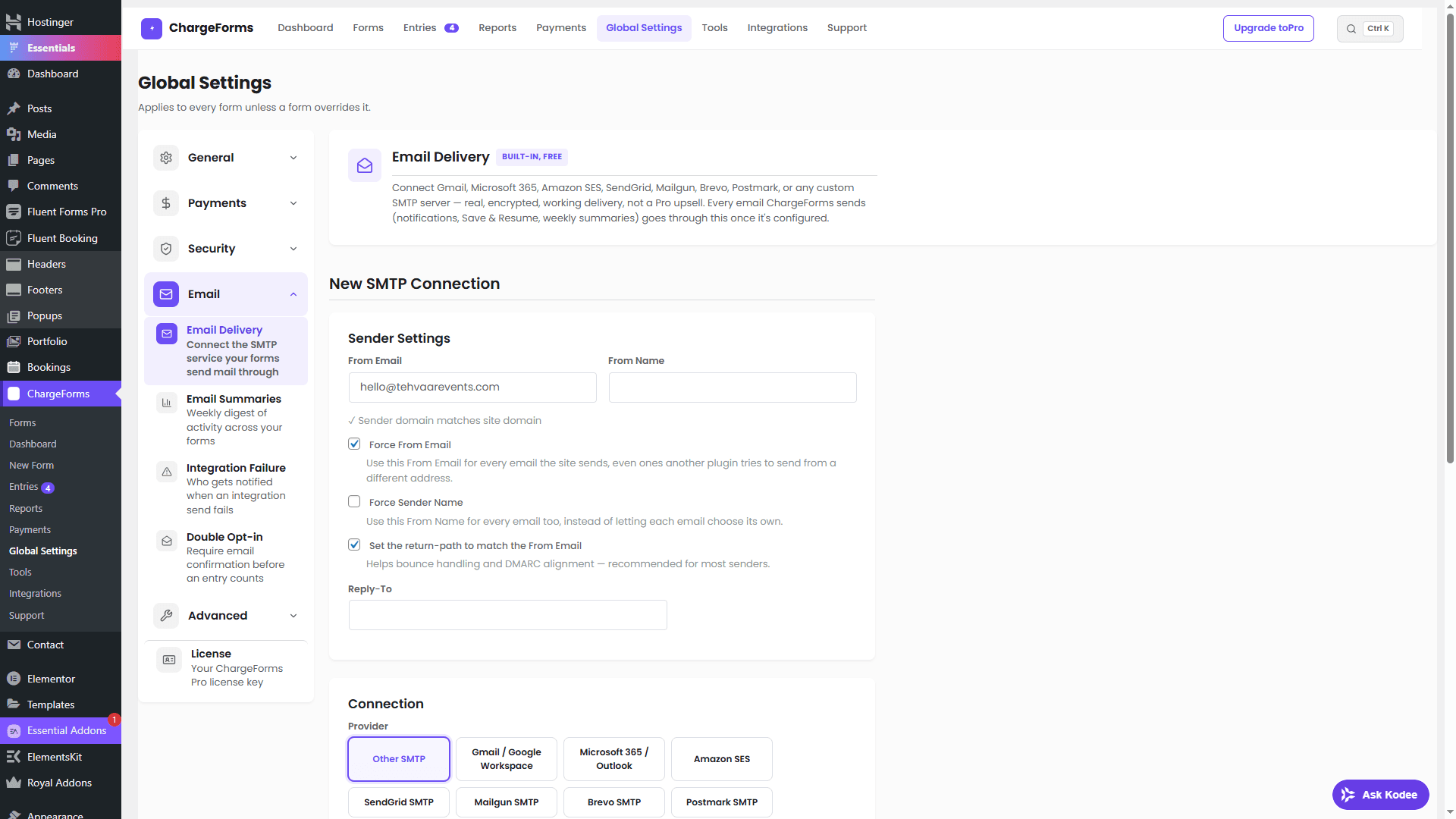
Use a domain-based From address such as forms@example.com. Set the submitted email as Reply-To so your team can answer the visitor without compromising the sender identity.
Send only the fields people need
Keep the notification readable. Put the important qualification fields first, followed by the message and optional context. Avoid including hidden fields, internal tokens, or sensitive information that the recipient does not need.
Route by ownership
If a form collects an enquiry type, use it to route the notification to the correct person or team. Test every branch, including the default route when no option matches.
Improve delivery reliability
When a host's default mail transport is unreliable, configure authenticated SMTP through a provider you trust. Use a consistent domain, verify DNS authentication according to your provider's instructions, and monitor failed deliveries rather than assuming an email was received.
Test the entire chain
For each notification:
- Send the built-in test email.
- Submit the public form while logged out.
- Confirm the entry appears in the admin Entries screen.
- Confirm the visitor receives the expected confirmation.
- Check the notification recipient and Reply-To headers.
If messages are missing, read WordPress form emails going to spam or not sending before changing the form fields.
ChargeForms supports per-form notification settings and a test-email workflow so you can verify delivery before a campaign goes live. Pair this guide with the lead generation form tutorial for the complete qualification and follow-up setup.
Frequently asked questions
What should the From address be on a WordPress form notification?
Use an address on the website's domain when possible, and put the visitor's address in Reply-To. This is more reliable than pretending the message was sent from the visitor's domain.
How do I test WordPress form notifications?
Send a test from the form settings, submit the public form while logged out, confirm the entry was stored, and check the recipient's spam and mail headers if the message is missing.
Should every form submission email the whole team?
No. Route notifications to the smallest responsible group. Use a service or department field when different answers need different owners.
Related posts