How to Migrate to ChargeForms From Fluent Forms, Contact Form 7, WPForms, or Ninja Forms
Switching form plugins usually means one of two bad options: manually rebuilding every form field by field, or trusting a generic import tool that half-works and silently drops the parts it doesn't understand. ChargeForms' Migrator is built to avoid both — it reads your existing plugin's actual data directly and does a real, verified field mapping, with an honest fallback for anything it can't map perfectly instead of dropping it.
Where to find it
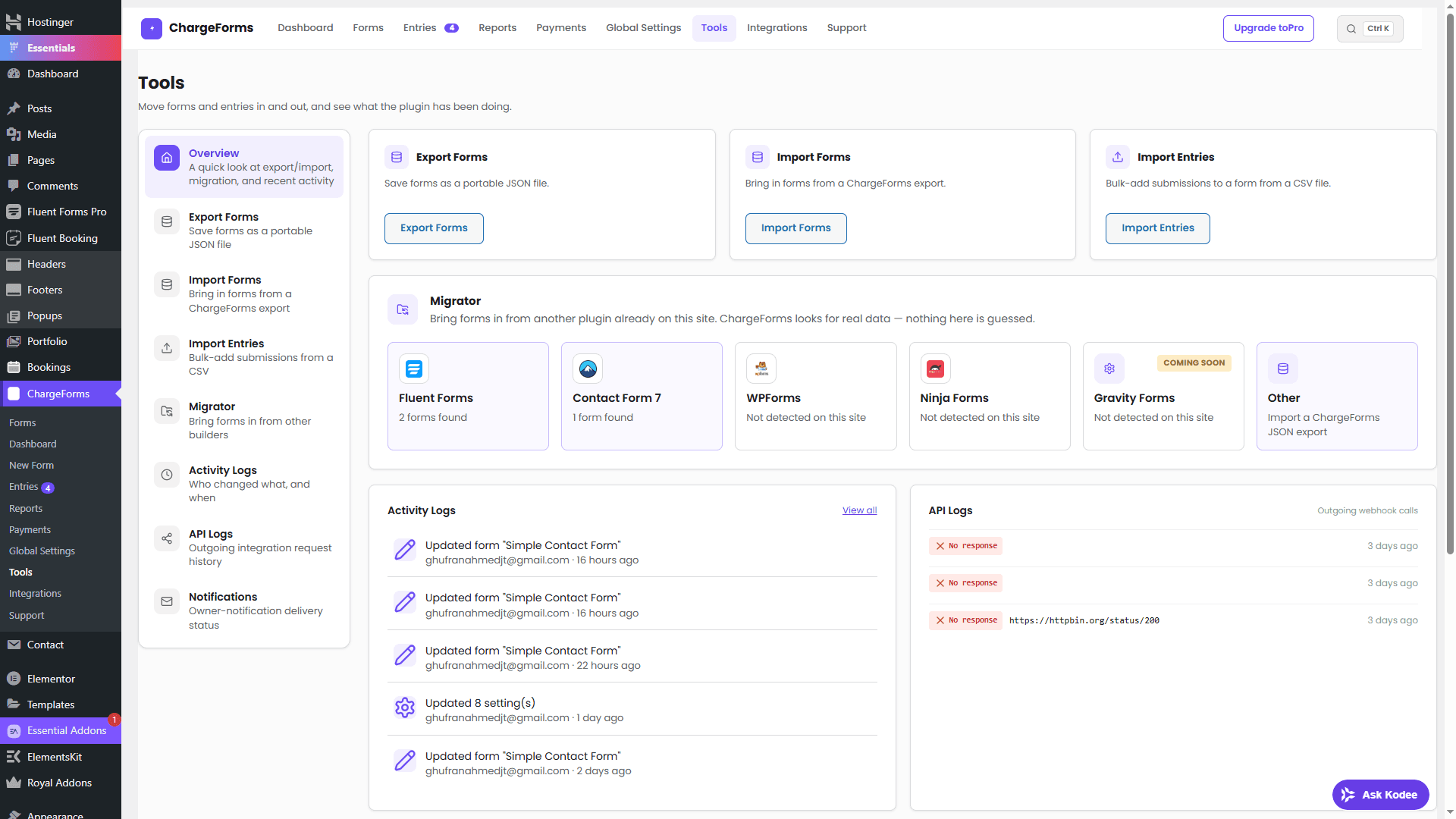
ChargeForms → Tools → Migrator automatically detects other form plugins already installed on your site — no manual "which plugin am I migrating from" selection needed for the common cases.
What's actually supported today
| Source | Import |
|---|---|
| Fluent Forms | Real, field-mapped |
| Contact Form 7 | Real, field-mapped |
| WPForms | Real, field-mapped |
| Ninja Forms | Real, field-mapped |
| Gravity Forms | Detection only — see below |
Each of the four field-mapped sources was built by reading that plugin's actual source code — its database table structure or post schema, and its own internal field-type identifiers — not inferred from documentation or guessed. The WPForms, Ninja Forms, and Contact Form 7 mappings were specifically verified against a real installed copy of each plugin before shipping, which matters because a field-mapping that looks correct on paper can still be wrong against what a plugin actually stores.
Why Gravity Forms is detection-only, honestly
Gravity Forms is a commercial plugin with no free public version to install and verify a field mapping against. Building a mapping blind, based only on documentation or reverse-engineered guesses, risks silently mis-mapping real customer forms — which is worse than not offering the import at all. Rather than ship that risk, Gravity Forms detection stays labeled "Coming Soon" until it can be built and verified against a real copy, the same standard the other four sources were held to.
Step-by-step: migrating a form
- Keep your existing plugin active while you run the migration — the Migrator reads directly from its actual database tables, so it needs to still be present at import time.
- Open ChargeForms → Tools → Migrator. Your existing, supported plugin(s) should already show up with a count of forms found, without any manual configuration.
- Select the form(s) to import. Each one runs through the real field-mapping for that source plugin.
- Review the imported form in the ChargeForms builder. Confirm field types, labels, and any conditional logic or payment field configuration came across as expected — this is worth actually checking, not assuming, especially for complex forms.
- Handle any Simple Text fallback fields. If your old form had a field type ChargeForms doesn't have a direct equivalent for, it imports as a plain Simple Text field with the original label intact — decide whether to manually reconfigure it as a more specific ChargeForms field type, or leave it as-is if Simple Text genuinely covers what it needs to do.
- Bring over historical entries separately, if you need them — export your existing submissions as CSV from your old plugin, then use ChargeForms' own Import Entries flow (same Tools screen) to bring that data in against the newly migrated form.
- Test the migrated form live before replacing the old shortcode/block on your actual pages — submit a real test entry and confirm notifications, payments (if applicable), and any integrations fire correctly.
- Swap the shortcode or block on your live pages once you're confident the migrated form works, then deactivate the old plugin.
What migrating doesn't carry over automatically
Being direct about the edges here, since a migration tool that's honest about its limits is more trustworthy than one that implies it does everything:
- Third-party add-ons from your old plugin — if your Contact Form 7 setup relied on a separate conditional-logic add-on, or your Ninja Forms setup used a paid payment add-on, that functionality doesn't migrate as an add-on; it needs to be rebuilt using ChargeForms' native equivalent (which is often simpler, since it's built in rather than a separate plugin).
- External integration credentials — Slack webhooks, Mailchimp API keys, and similar per-integration settings are configured fresh in ChargeForms, not pulled from your old plugin's stored credentials.
- Notification email templates, if heavily customized — the Migrator brings over the form structure; notification wording is worth reviewing and rebuilding in ChargeForms' own notification settings rather than assuming a complex custom template ported over exactly.
The bottom line
A form migration tool is only as trustworthy as what it does with the parts it can't map perfectly — silently dropping data is worse than not automating the migration at all. ChargeForms' Migrator does a real, verified import for the four most common sources, and is honest about the one it can't verify yet (Gravity Forms) rather than guessing. If you've been putting off switching because rebuilding forms from scratch sounded like the only option, it usually isn't. See the Migrator documentation for the technical detail, or the alternatives comparisons if you're still deciding which plugin to migrate away from in the first place.
Frequently asked questions
Does the ChargeForms Migrator actually move my forms, or just detect them?
For Fluent Forms, Contact Form 7, WPForms, and Ninja Forms, it's a real, field-mapped import — not just detection. Each mapping was built by reading that plugin's actual source (its database table or post schema, its own field type slugs), and the WPForms, Ninja Forms, and Contact Form 7 paths were verified against a real installed copy of each plugin, not guessed from documentation alone.
What happens to a field type ChargeForms doesn't have an equivalent for?
It's never silently dropped. An unrecognized field type lands as a plain Simple Text field with its original label preserved, so you keep the submitted-data shape and know exactly what to manually adjust, rather than losing that field's data entirely during migration.
Can I migrate from Gravity Forms?
Detection only today, not a field-mapped import — and this is a deliberate, disclosed limitation, not an oversight. Gravity Forms is a commercial plugin with no free download available to verify a mapping against, so rather than guess at its schema blind and risk silently mis-mapping real forms, that source stays honestly labeled "Coming Soon" until it can be built and verified properly against a real installed copy.
Does the Migrator bring over my existing entries too, or just the form structure?
Form structure and entries are two separate flows. The Migrator itself handles form structure. Historical submission data is a separate CSV-based Import Entries flow in the same Tools screen — export your existing entries from your current plugin as CSV first, then import them into the newly migrated form.
Do I need to keep my old form plugin active during the migration?
Briefly, yes — the Migrator reads directly from your old plugin's own database tables to build the field mapping, so it needs to still be installed (active or at least present) at the moment you run the import. Once the import completes and you've verified the new form works correctly, the old plugin can be deactivated.
Related posts
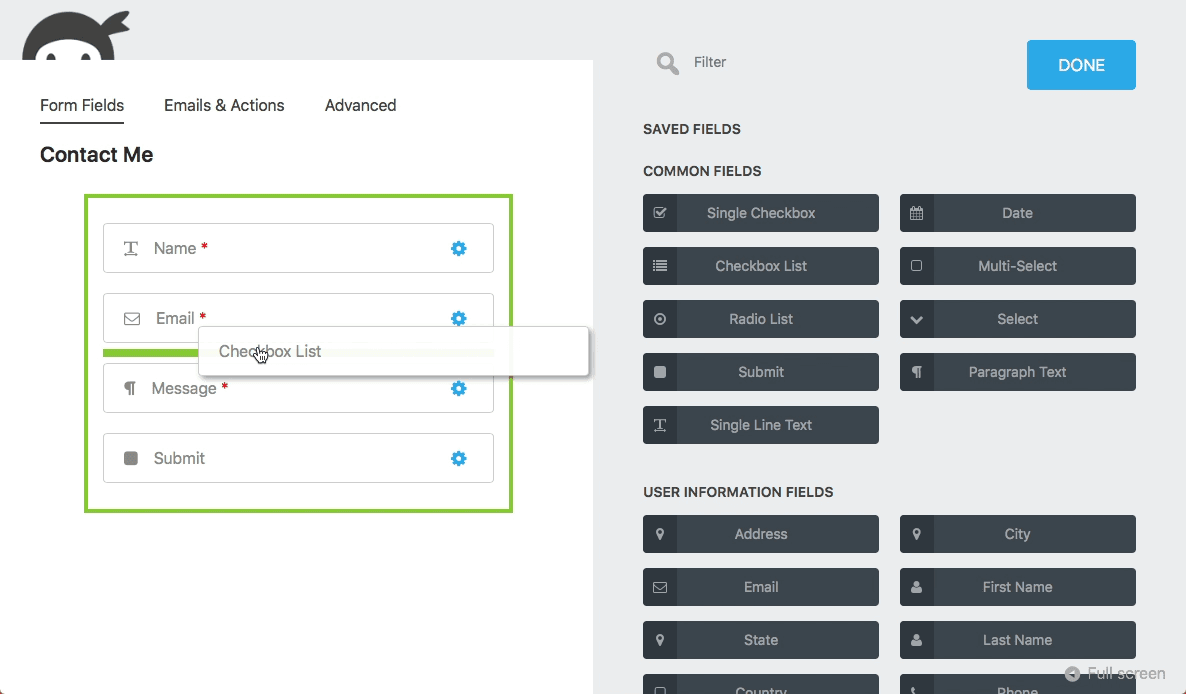
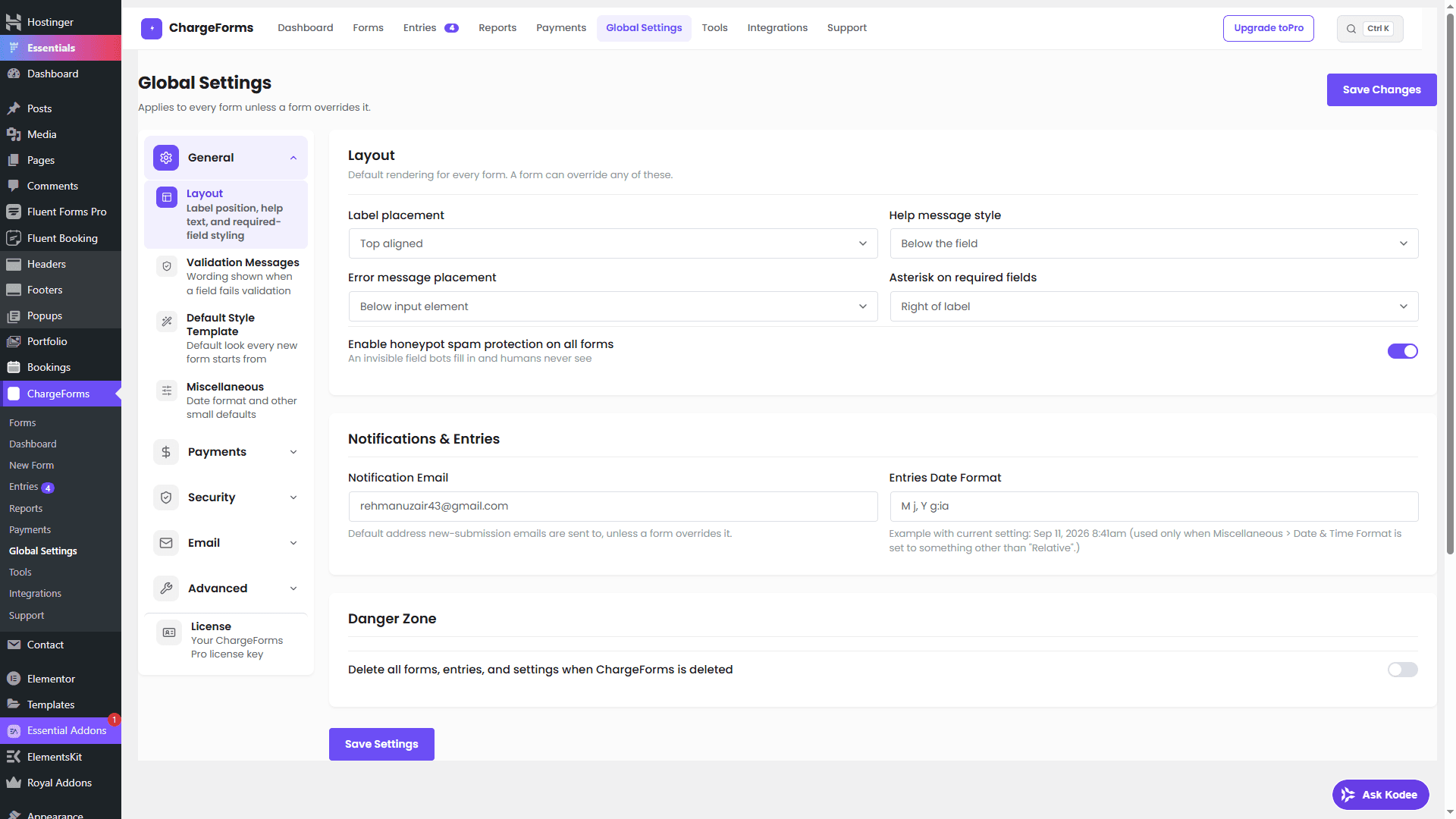
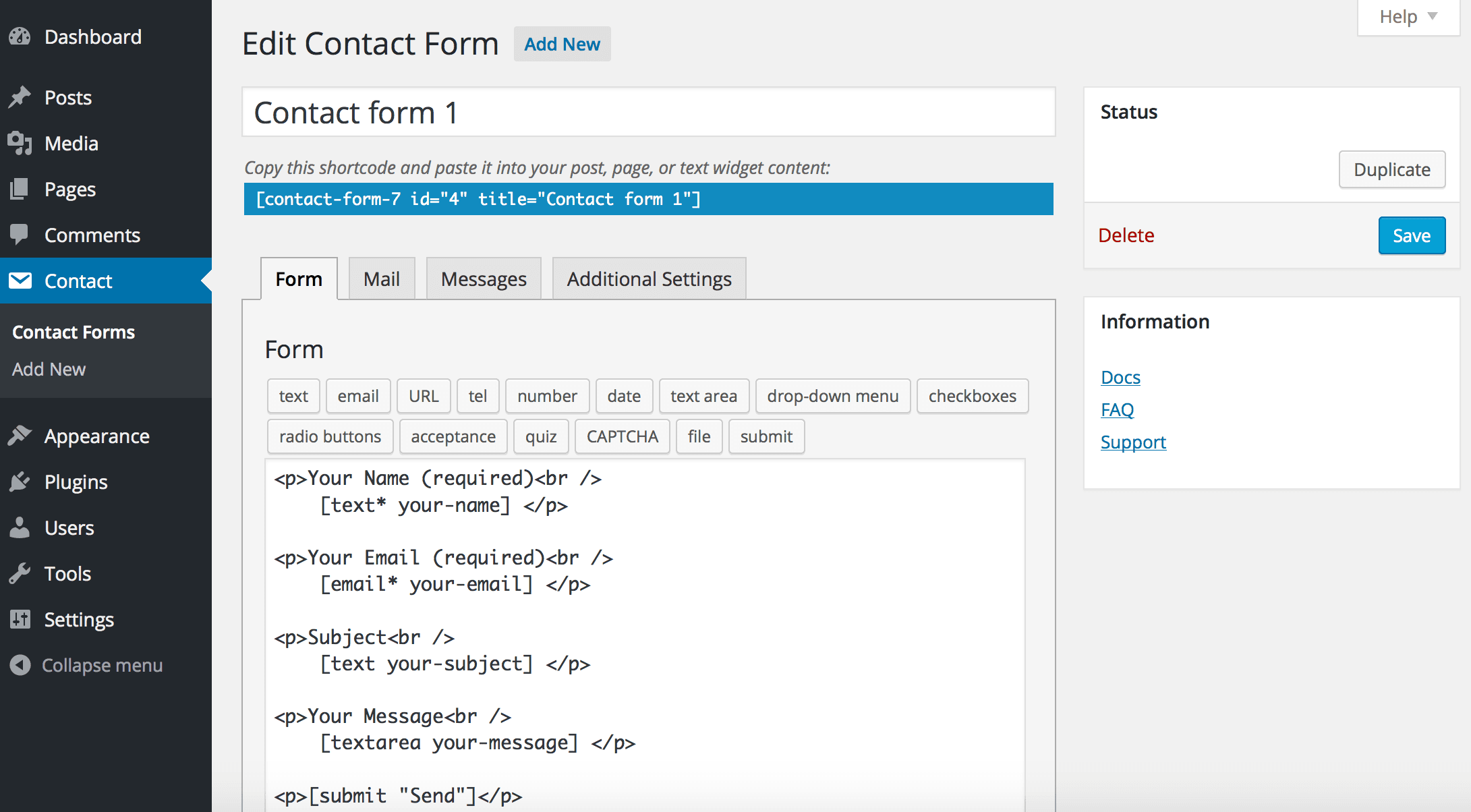
Contact Form 7 Is in Maintenance Mode: What That Actually Means
Contact Form 7's creator confirmed at WordCamp Asia 2026 that version 6.2 is the last feature release — the plugin now gets security patches only. Here's what changes, what doesn't, and what to actually do about it.