Appointment Booking Forms With Conditional Logic in WordPress (Free, 2026 Guide)
An appointment or booking form almost never has the same fields for every visitor. A hair salon's form needs different fields for a haircut versus a color treatment. A consulting firm's intake form needs different questions depending on which service someone's booking. A repair shop needs a vehicle make/model field only when the service is auto-related. This is exactly the problem conditional logic solves, and combined with a multi-step layout, it's how you build a booking form that feels short and relevant to every visitor instead of one long form with fields that don't apply to most of them.
This guide covers how to actually build one — the field logic, the multi-step structure, deposit collection, and how the major WordPress form plugins compare on free-tier support for this specific combination. It also covers where a form plugin's conditional logic stops being enough on its own, and when a dedicated scheduling tool is the better call instead.
Why appointment forms need conditional logic
A generic contact form asks everyone the same questions. A booking form usually shouldn't, because "everyone" is booking different things. A few real patterns:
- Service-dependent fields — a plumbing company's form might show "issue description + photo upload" for repairs but "square footage + property type" for installations, based on which service the visitor selects first.
- Staff or resource selection — showing available staff members (and their available time slots) only after a service is chosen, since not every staff member offers every service.
- Duration-dependent scheduling — a 30-minute consultation and a 3-hour on-site visit need different time-slot granularity; conditional logic can swap which scheduling field displays based on the selected service's duration.
- Pricing that depends on selections — add-ons, group size, or service tier changing the total price shown before checkout.
- Skipping irrelevant steps entirely — a returning client might skip a "new client intake" step that a first-time visitor needs to complete.
Without conditional logic, you either build a separate form for every service (a maintenance headache) or one long form with a pile of "N/A" fields most visitors have to scroll past.
Real examples by industry
Seeing this pattern applied to specific businesses makes the abstract "conditional logic" idea concrete:
Hair and beauty salons. Service selection (cut, color, extensions, treatment) drives everything downstream: a color treatment needs a "current hair color / desired color" field and a longer default appointment duration; a simple cut doesn't. Add-ons (deep conditioning, blowout) can each be their own conditionally-revealed checkbox once a compatible base service is selected, with the price total updating as they're checked.
Home and auto repair. The classic case — "Auto Repair" reveals vehicle make/model/year and a description field; "Plumbing" reveals property type and issue category instead. Emergency vs. scheduled service can conditionally show a rush-fee notice and a different (narrower) set of available time slots.
Consulting and professional services. New client vs. returning client is often the first fork: new clients see an intake questionnaire step that returning clients skip entirely (a step-level condition, not just a field-level one). Service tier selection (basic call vs. full engagement) can conditionally reveal a scope-of-work text field only for the higher tier.
Medical, dental, and wellness. Appointment type (checkup, procedure, consultation) determines whether insurance information, a symptoms field, or a "have you been here before" field appears. First-visit patients often see an additional intake step entirely, structurally similar to the new/returning client pattern above.
Events and venues. Guest count can conditionally reveal a "seating preference" field once above a threshold, or hide a deposit field for free events while showing it for paid ones. Date selection can conditionally restrict which time slots are shown based on which package (half-day vs. full-day) was chosen earlier in the form.
The pattern repeats: one early-form selection (service, client type, package) becomes the source condition that most of the rest of the form's visibility logic depends on.
Why multi-step matters here too
Booking forms tend to accumulate fields fast: service selection, date/time, contact details, special requests, payment. Once you're past 6-7 fields, splitting into steps — service, then scheduling, then details, then payment — measurably reduces abandonment compared to one long page (see the multi-step forms guide for the actual conversion data behind this). For booking forms specifically, splitting by natural stage also happens to be the most intuitive structure for the visitor: pick what you want, pick when, tell us about you, pay.
Building the form: field logic and structure
Here's the general structure that works across most WordPress form plugins that support both features:
- Step 1 — Service selection. A dropdown or button-group field for the service type. This is the field every downstream condition reads from.
- Step 2 — Conditionally-shown details. Fields that only appear based on the Step 1 selection — vehicle details for auto services, property details for on-site services, headcount for group bookings, and so on.
- Step 3 — Scheduling. Date/time selection, potentially with staff or resource selection if relevant, also conditionally filtered by the Step 1 service (not every staff member offers every service).
- Step 4 — Contact details. Name, email, phone — usually unconditional, needed for every booking.
- Step 5 — Deposit or payment (if applicable). A payment field, often only shown for services that actually require a deposit — another good use of conditional logic within a multi-step flow, showing the payment step for some services and skipping straight to confirmation for others.
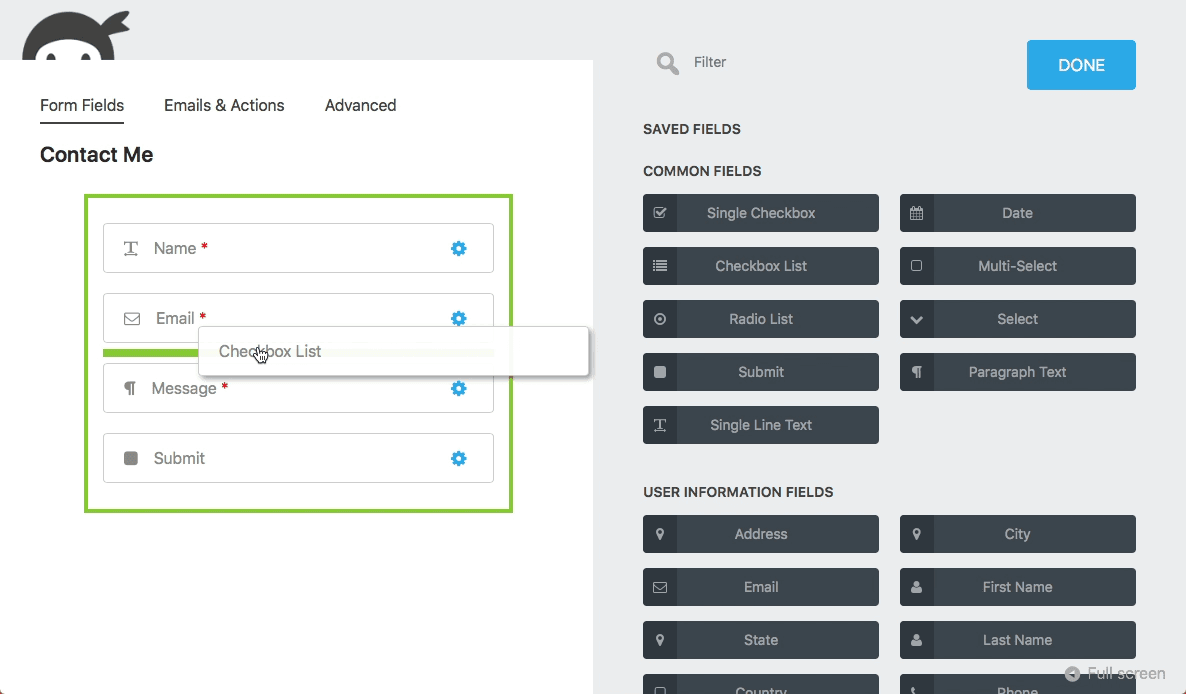
The conditional rule pattern is almost always the same across plugins: "Show/hide [target field] IF [source field] [is/is not/contains] [value]." More capable conditional logic engines support nested AND/OR groups, which matters once you have more than one or two conditions stacked (e.g., "show the deposit field IF service = 'On-site visit' AND booking date is within 7 days").
A worked example: a repair-service booking form
To make the structure concrete, here's how a home-repair company's booking form might actually be configured, step by step, using the plumbing/electrical/HVAC example:
Step 1 (Service selection): A single required dropdown — "What do you need help with?" — with options like Plumbing, Electrical, HVAC, and General Handyman. This one field is the source condition for nearly everything that follows.
Step 2 (Service-specific details), shown conditionally per Step 1 answer:
- If Plumbing: "Issue type" (leak, clog, installation, other) + photo upload + "Is this an emergency?" toggle.
- If Electrical: "Issue type" (outlet, panel, lighting, wiring) + "Is your power currently out?" toggle, since that changes urgency handling.
- If HVAC: "System type" (central air, heat pump, furnace, mini-split) + "System age" dropdown, since older systems often need a different technician skill set.
- If General Handyman: a single open "Describe what you need" text field, since this category is too broad for structured sub-fields.
Step 3 (Scheduling): A date picker plus a time-slot field. If Step 2's "emergency" toggle was checked, this step can conditionally show only same-day/next-day slots instead of the full calendar — a good example of conditional logic reaching across steps, not just within one.
Step 4 (Contact details): Name, phone, service address — unconditional, needed for every booking regardless of service type.
Step 5 (Deposit), shown conditionally: Only appears if the selected service in Step 1 is Electrical or HVAC (categories where this business requires a deposit for scheduling); skipped entirely for Plumbing and Handyman bookings, which go straight from Step 4 to a confirmation screen.
Five steps, but no individual visitor sees more than 4 of them, and nobody sees an irrelevant field — someone booking a handyman visit never sees a "system age" dropdown, and someone with a non-emergency plumbing issue never sees the restricted same-day-only time slots.
Notifications, reminders, and confirmations
The form submission itself is only half of a working booking flow — what happens after matters just as much for no-show rates and client experience:
- Instant confirmation to the visitor (email, and SMS if your plugin/integration supports it) restating what was booked, when, and any deposit/payment status.
- Internal notification to whoever needs to prep for or fulfill the appointment — often routed differently depending on the Step 1 service selection (the plumbing team doesn't need every HVAC booking notification).
- Reminder timing — a reminder 24-48 hours before the appointment measurably reduces no-shows; most form plugins don't do scheduled reminders natively and need a Zapier/Make automation or a dedicated calendar integration layered on top for this specific piece.
- Cancellation/reschedule path — decide upfront whether that's a reply-to-the-confirmation-email flow or a dedicated cancellation link, and make sure your deposit refund policy (if any) is stated at the point of payment, not just buried in terms.
Testing a conditional booking form before launch
Conditional forms fail quietly if untested — a broken condition doesn't throw an error, it just shows the wrong fields (or no fields) and nobody notices until a customer complains. Before launching:
- Walk through every branch manually — every service type, every toggle combination — not just the happy path you had in mind while building it.
- Check the emergency/rush-condition paths specifically if you have them, since these are usually the least-tested branch (you're testing the common case far more often than the edge case while building).
- Test on mobile — conditional fields appearing/disappearing can cause more jarring layout shifts on a small screen than they do on desktop.
- Submit a real test booking end-to-end, including the payment step if you have one, to confirm the confirmation email/notification actually fires correctly for a genuinely conditional path (not just the default one).
Collecting a deposit at booking
For services where no-shows are costly, collecting a deposit (or full payment) at booking time is common. This requires a form plugin with a payment field connected to Stripe or PayPal — usually a paid-tier feature across most WordPress form plugins.
If you're taking payment at booking, decide upfront whether it's a full charge or a deposit, and whether it's refundable if the appointment is cancelled — this affects how you configure the payment field's amount (fixed vs. calculated from earlier selections) and what your confirmation/cancellation messaging says.
Limiting or restricting booking slots
Beyond conditional field logic, some booking scenarios need field-level restrictions — capping how many bookings a single time slot can receive, or restricting which dates are selectable at all (blocking out holidays, limiting bookings to business hours, capping submissions per day).
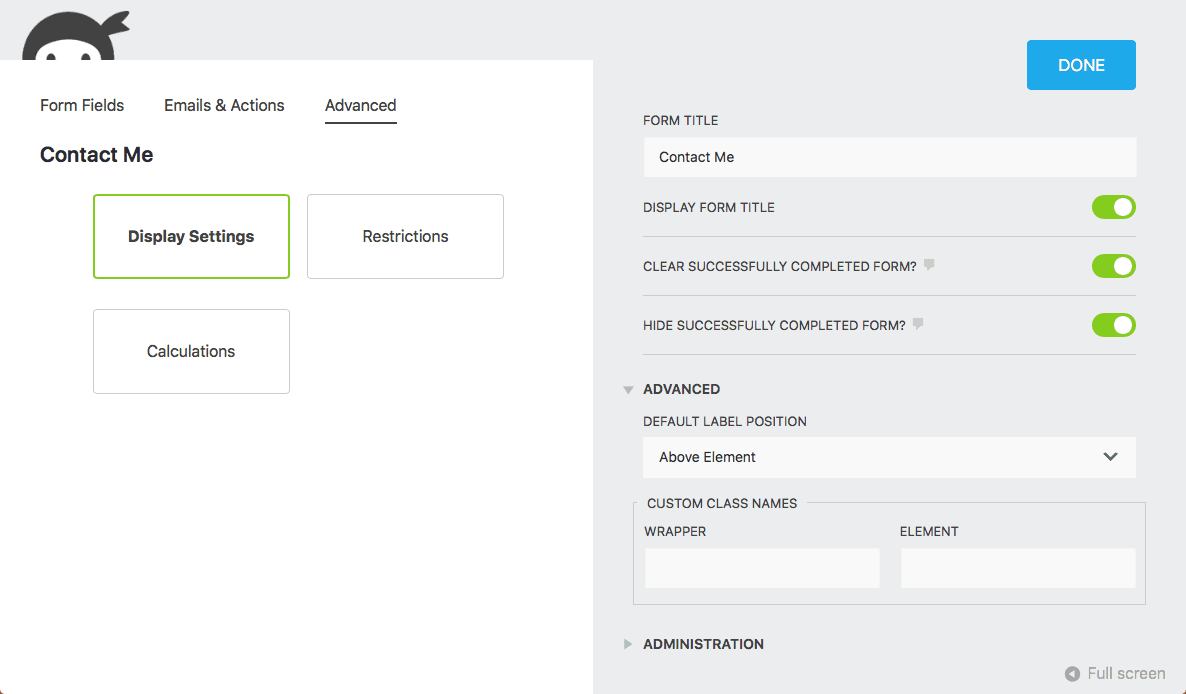
This is a separate capability from conditional logic (which controls visibility) and multi-step (which controls layout) — restrictions control validity, rejecting a submission that violates a limit rather than just hiding a field. Not every plugin's free tier includes field restrictions even when it includes basic conditional logic, so check this specifically if slot-capping matters for your use case.
How the major plugins compare for this specific combination
Appointment forms need three things at once — conditional logic, multi-step layout, and (often) payments — and free-tier support for all three together is inconsistent enough to be worth checking before you commit to a plugin.
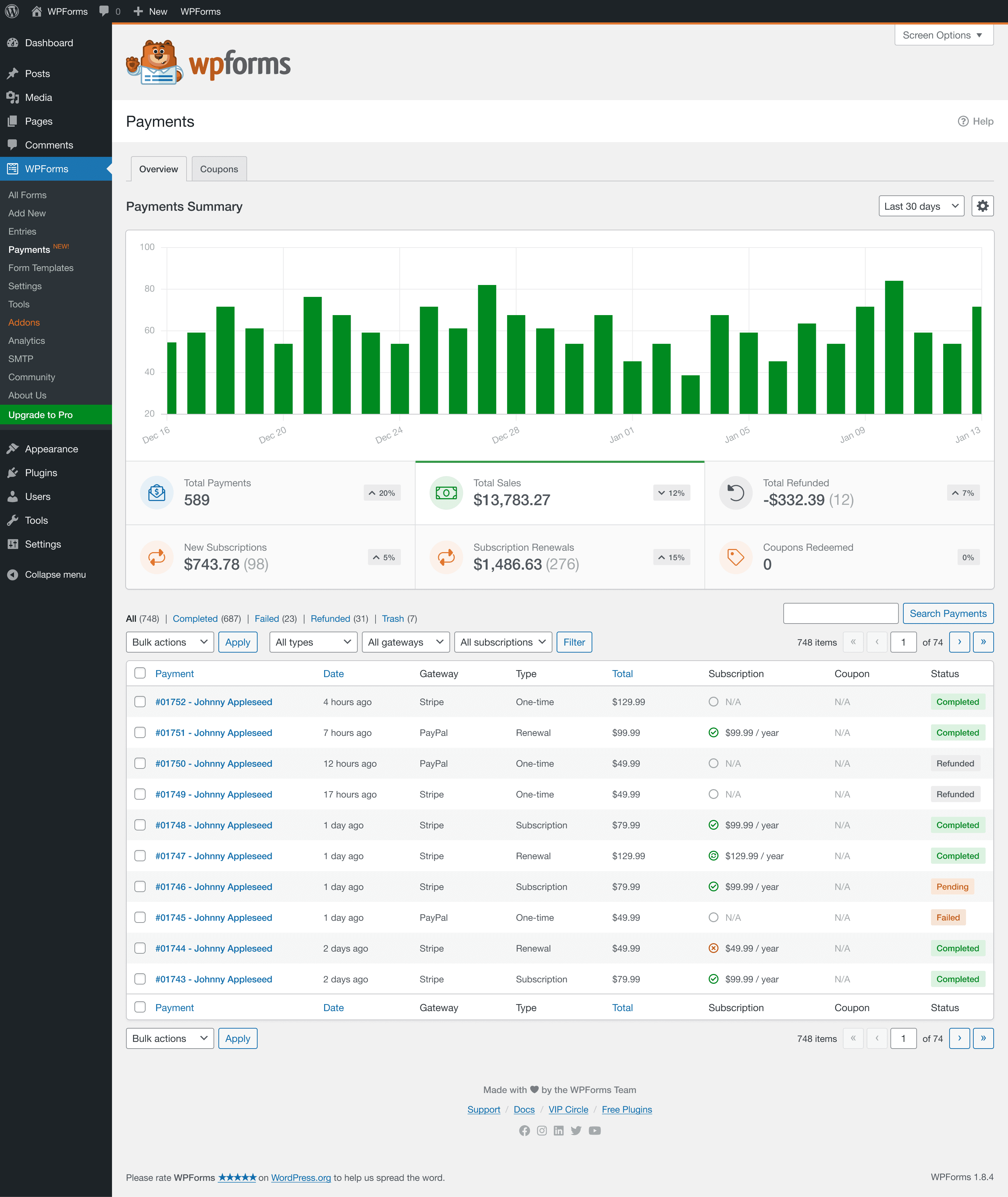
"Cond. logic" = conditional field logic on the free plan. "Multi-step + pay" = both multi-step forms AND payment fields available free — Fluent Forms is marked partial since multi-step is free but payments require Pro.
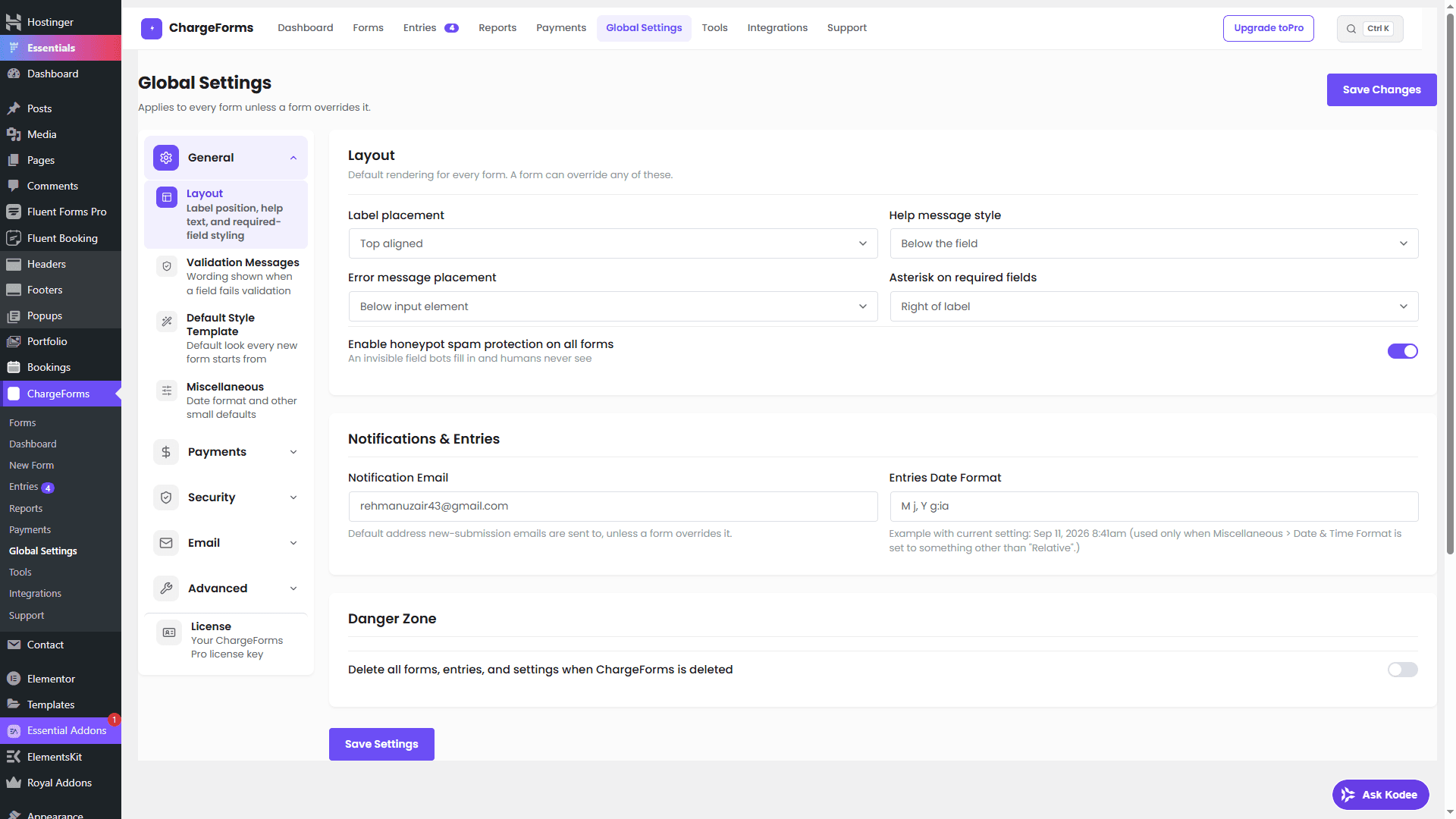
ChargeForms is the only plugin in this comparison with all three — conditional logic, multi-step, and payments — on its free plan, which matters specifically for appointment forms since they tend to need all three together rather than just one. Fluent Forms covers conditional logic and basic multi-step free but requires Pro for the payment field a deposit-collecting booking form needs. Every other plugin listed requires a paid plan before you can build this kind of form at all.
Form plugin vs. dedicated booking plugin
It's worth being clear about what a form plugin with conditional logic actually solves versus what it doesn't. A form plugin — even a very capable one — handles the intake problem well: adapting which questions get asked based on what's being booked. It does not natively handle real-time calendar availability, double-booking prevention across multiple staff calendars, or automatic timezone conversion for remote clients.
If your business has a handful of staff with independently-managed calendars and double-booking is a real operational risk, a dedicated scheduling plugin (Booknetic, Simply Schedule Appointments, Appointment Hour Booking, or similar) that syncs to Google/Outlook calendars is usually the better foundation — some of these even layer their own conditional logic on top specifically for booking-relevant conditions.
If your actual need is closer to "a smart intake form that adapts to what's being booked, with a date/time field and maybe a deposit," and you don't have the double-booking risk of multiple independently-scheduled staff, a form plugin with solid conditional logic and multi-step support covers the use case directly without adding a second plugin and its associated cost/maintenance. Many small service businesses — a single practitioner, a small team all deferring to one shared calendar — fall into this second category and are overserved by a dedicated booking plugin's complexity.
Setting up the conditional logic itself
Regardless of which plugin you use, the actual rule-building interaction is close to universal:
- Add the field you want to conditionally show or hide (the "target" field — e.g., the vehicle make/model field).
- Open that field's settings and find the conditional logic / smart logic section.
- Enable conditional logic for the field, then define the rule: choose the "source" field (e.g., the service-type dropdown), the comparison (is / is not / contains / greater than, depending on field type), and the value that should trigger the target field's visibility (e.g., "Auto Repair").
- If you need more than one condition, most builders let you add additional rules within the same group (all must match — AND logic) or as a separate rule group (any group can match — OR logic). This is where the more capable engines (nested AND/OR/NOT) genuinely help once a booking form has more than two or three source fields feeding conditions.
- Preview the form and manually test every branch — this step gets skipped more often than it should, and it's the single most common source of a conditional form that looks fine in the builder but breaks for real visitors.
Common mistakes with conditional booking forms
- Too many nested conditions. If a form needs 5+ layered conditional rules to work, consider whether splitting into separate step-specific forms per major service category is actually simpler than one mega-form with deeply nested logic.
- No fallback for "none of the above." If your service dropdown doesn't have an "Other" option with its own generic field set, visitors with an edge-case need either can't book or have to guess the closest match.
- Forgetting mobile. Conditional fields that appear/disappear can cause layout jumps that are more jarring on mobile than desktop — test the full conditional flow on a phone, not just desktop.
- Payment step with no clear refund policy. If you're collecting a deposit, say what happens to it on cancellation somewhere visible before the payment field, not buried in a separate terms page nobody reads before booking.
- Real-time calendar conflicts. A form plugin's conditional logic and multi-step layout don't manage staff calendar availability by themselves — if double-booking is a real risk, you likely need this paired with a dedicated scheduling plugin or a calendar integration, not just form logic alone.
- Building the logic before the field list is finished. It's tempting to start wiring up conditions as soon as the first couple of fields exist, but conditional rules that reference a field you later rename or remove silently break. Finalize the field list and naming first, then add conditional logic as a pass over the completed form.
- Assuming free-tier parity across plugins. As the comparison above shows, "conditional logic" and "multi-step forms" being mentioned on a plugin's marketing page doesn't mean both are actually available without upgrading — verify against the free plan specifically, not the feature list on the homepage, which usually describes the product's ceiling rather than its free floor.
The bottom line
Appointment and booking forms are one of the clearest real-world cases where conditional logic and multi-step layout genuinely need to work together — the form has to adapt to what's being booked, and it has to not overwhelm the visitor with every possible field at once. Check a plugin's free-tier support for conditional logic, multi-step, and payments together before committing, since needing to upgrade partway through building a booking flow because payments turned out to be Pro-only is a common, avoidable frustration. If you want the specifics on how ChargeForms handles all three, see the full feature list or the pricing page — or the deeper dives on multi-step forms and conditional logic if you want to build up the two pieces separately before combining them.
Frequently asked questions
Can I use conditional logic in an appointment booking form?
Yes. Conditional logic lets an appointment form show or hide fields based on earlier answers — for example, showing a "vehicle make/model" field only when "Auto Repair" is selected as the service, or showing different staff/time options depending on the service chosen. Most modern WordPress form plugins support this, though free-tier availability varies significantly between them.
What's the difference between a conditional form and a multi-step form for booking?
They solve different problems and work well combined. Conditional logic changes which fields appear based on an answer (e.g., skip the "number of guests" field for a solo service). Multi-step splits the form into screens with a progress bar. A booking form with many service types and a lot of fields typically benefits from both together — multi-step to avoid overwhelming the visitor, conditional logic within each step to only show relevant fields.
Which WordPress form plugin is best for appointment forms with conditional logic?
It depends mainly on budget. ChargeForms includes conditional logic, multi-step forms, and Stripe/PayPal payments (for deposits) all on its free plan. Fluent Forms' free plan includes conditional logic but not payments. WPForms, Gravity Forms, and Ninja Forms all require a paid plan for conditional logic, and WPForms/Gravity Forms also require paid tiers for multi-step support.
Can I collect a deposit when someone books an appointment?
Yes, if your form plugin supports payment fields — this usually requires connecting Stripe or PayPal and adding a payment field to the form, often on a dedicated "deposit" step at the end of a multi-step booking flow. This is typically a paid-tier feature on most WordPress form plugins, ChargeForms being the main exception with it included free.
Do I need a dedicated booking plugin instead of a form plugin for appointments?
Less often than it used to be true. This used to be a real gap — a form plugin's conditional logic could vary which fields appear by service, but couldn't check real-time availability or stop two visitors from booking the same slot. A dedicated booking calendar field closes that specific gap without a second plugin (see our guide on adding real-time availability to a WordPress form). You'd still reach for a separate dedicated booking tool for things that go beyond a single form's booking field, like managing several staff members' independent calendars or deep two-way sync with multiple external calendar providers at once.
Related posts
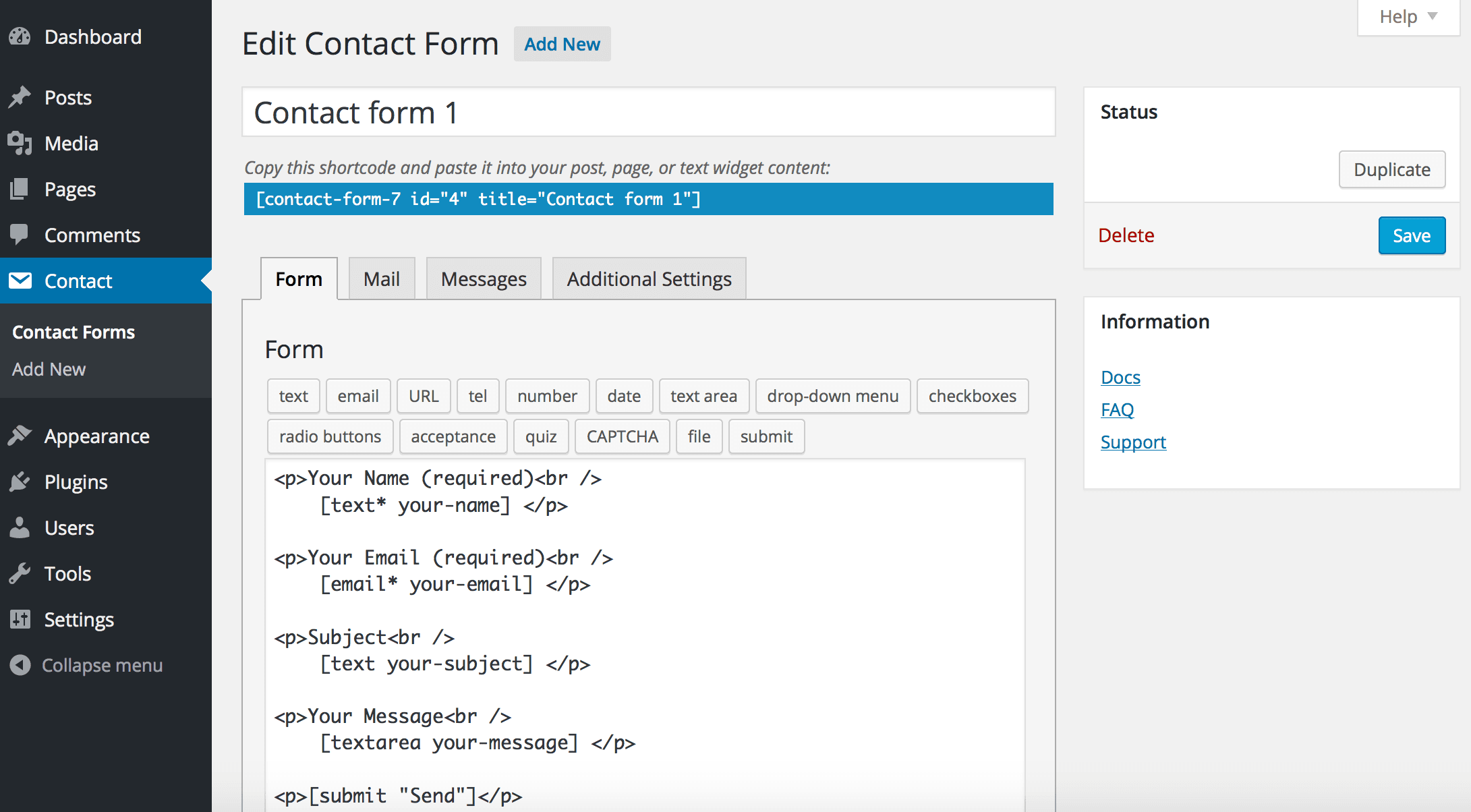
Contact Form 7 Is in Maintenance Mode: What That Actually Means
Contact Form 7's creator confirmed at WordCamp Asia 2026 that version 6.2 is the last feature release — the plugin now gets security patches only. Here's what changes, what doesn't, and what to actually do about it.