WordPress Form Accessibility Checklist
Accessibility is not a decorative upgrade. A person should be able to understand what a field asks, move through the form, correct an error, and submit it without depending on a mouse or perfect vision.
WordPress form accessibility checklist
1. Give every field a real label
Each input needs a clear visible label associated with its control. A placeholder is an example, not a label: it disappears as soon as someone starts typing.
Use labels such as Work email or Project budget instead of vague labels like Details. If a field is optional, say so in the label or supporting description.
2. Keep the tab order logical
Press Tab from the beginning of the form to the submit button. Focus should move in the same order a sighted visitor reads the fields. Do not use positive tabindex values to force a visual layout into a different interaction order.
3. Make focus visible
Keyboard users need to know which field is active. Do not remove the browser outline without replacing it with a high-contrast focus style. Check focus on text fields, selects, checkboxes, radios, buttons, and conditional fields.
4. Make errors specific and perceivable
“Please fix this field” is not enough. Say what is wrong and how to fix it, for example: Enter a valid work email address. Keep the message near the field and make sure it is announced or otherwise perceivable after submission.
5. Group related controls
Use a clear legend or heading for related radio buttons and checkboxes. A visitor should understand whether the choices describe a service, a contact preference, or consent.
6. Test conditional logic
When a field appears or disappears, keyboard focus should not jump unexpectedly. A hidden conditional field should not remain in the tab order or be submitted as if it were visible.
Test a ChargeForms form
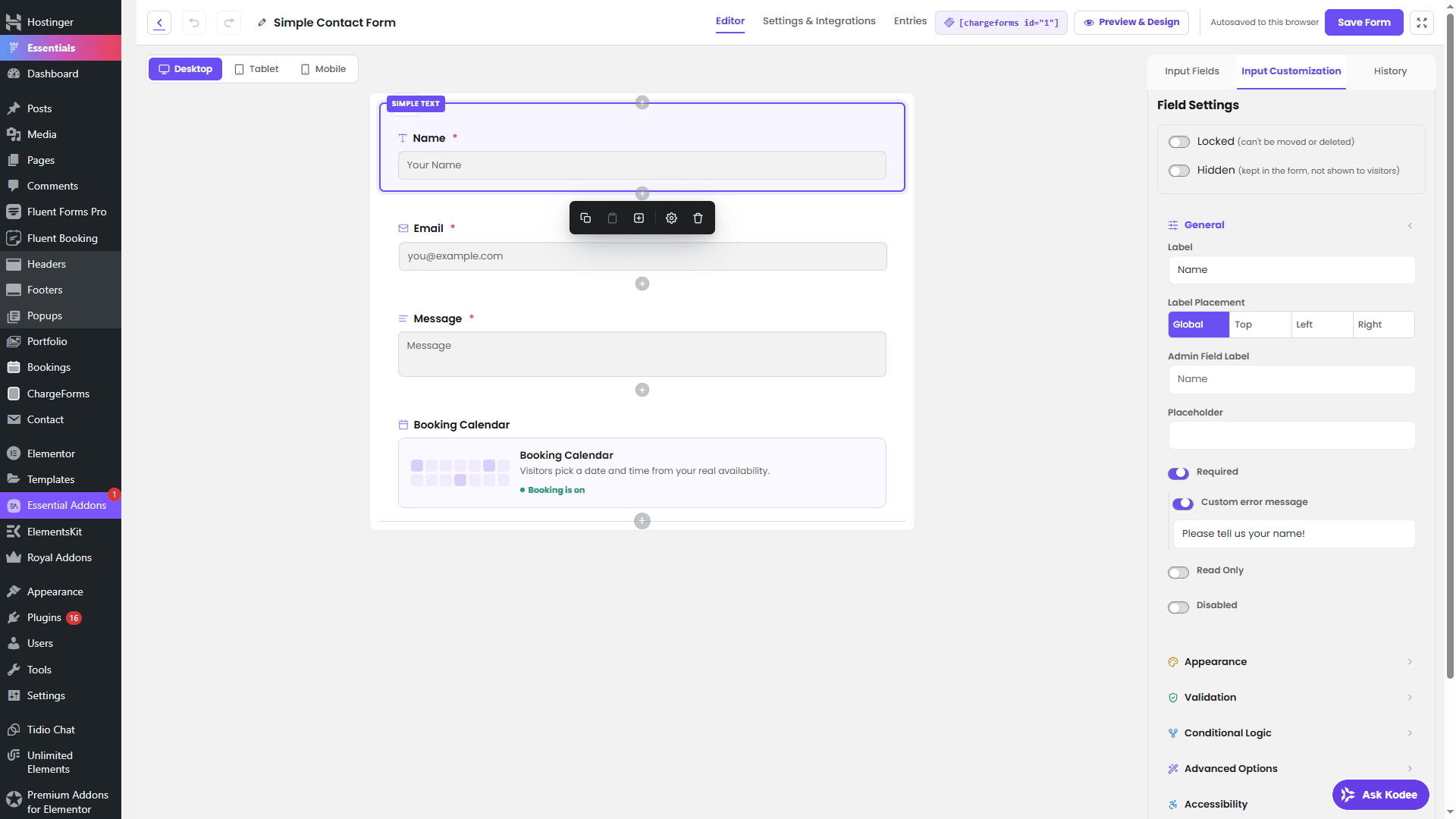
Build the form in ChargeForms, then test it while logged out with a keyboard, a narrow mobile viewport, and invalid values. Review the live public form—not only the builder preview—before publishing it.
The WordPress accessibility guidance also emphasizes labels, logical tab order, visible focus, and perceivable post-submission errors. Read the WordPress accessibility guidance.
For related setup, see how to create a lead generation form and conditional logic in WordPress forms. These same fundamentals also determine whether an AI browser agent can fill out your form correctly on a visitor's behalf — see is your form ready for AI agents for that angle specifically.
Frequently asked questions
What makes a WordPress form accessible?
An accessible form has associated labels, logical keyboard order, visible focus states, understandable instructions, perceivable errors, sufficient contrast, and controls that work without a mouse.
Is placeholder text enough for a form label?
No. Placeholder text disappears while someone types and should not replace a persistent, programmatically associated label.
How do I test form accessibility?
Complete the form with only a keyboard, inspect labels with a browser accessibility tool, test zoom and mobile widths, and submit invalid values to verify the error experience.
Related posts