How to Add a Real Appointment Calendar to a WordPress Form (Live Availability, No Double-Booking)
A dropdown that says "2:00 PM" next to a service selector looks like a booking form. It isn't one — not really — unless something is actually checking whether 2:00 PM is still open before letting a second visitor pick it too. That distinction is easy to miss until the day two customers show up to the same appointment, both holding a confirmation email. Here's what an actual booking calendar has to get right that a conditional-logic dropdown doesn't, and how to add one to a WordPress form properly.
The gap this closes
Our earlier guide on booking forms with conditional logic covers a real and useful pattern — showing different fields for different services, multi-step flows, deposit collection — and it's honest that conditional logic alone doesn't give you real-time calendar availability. That gap is what a dedicated booking calendar field exists to close: a field type that knows what's actually still open, not just a styled input that collects whatever a visitor types or picks.
What a real booking field checks that a dropdown doesn't
A plain date/time dropdown, even a nicely styled one, is just collecting two pieces of text. It has no idea whether that combination is available, already booked, outside business hours, or physically impossible given how long the appointment takes. A real booking calendar field is backed by an actual availability engine that accounts for:
- Working hours per day — different hours for different weekdays, not one blanket schedule (a salon open 9–5 Monday to Friday but only 10–2 on Saturday, closed Sunday).
- Slot duration — how long each appointment actually occupies, so the calendar doesn't offer a 2:00 PM slot for a 90-minute service that would run into a 3:00 PM booking that already exists.
- Buffer time — a gap automatically blocked after each appointment (cleanup, travel, prep) so back-to-back bookings don't get scheduled with zero breathing room.
- Bookings per slot — usually 1 (one appointment at a time), but configurable higher for group sessions or classes where several people can book the same time.
- Minimum notice — how soon before an appointment someone's still allowed to book (blocking a booking for "10 minutes from now" that nobody could realistically prepare for).
- How far ahead bookings are allowed — a maximum booking window, so the calendar doesn't show availability a year out that nobody's actually confirmed staffing for.
- Date overrides — specific dates marked fully closed (holidays, planned closures) or given different hours than the weekly default.
None of that is optional detail — each one is a real way a naive implementation lets someone book something that shouldn't be bookable.
Why "checking availability" and "reserving the slot" can't be two separate steps
This is the part that's easy to get wrong even when everything above is implemented, and it's the actual cause of most real-world double-booking bugs. If a booking flow works like this —
- Visitor submits a booking for 2:00 PM
- Server checks: "is 2:00 PM still free?" → yes
- Server creates the booking
— there's a window between step 2 and step 3 where a second visitor's request can run the exact same check, also see "yes, still free," and also proceed to create a booking for the same slot. Both requests saw an accurate answer at the moment they checked; the problem is that checking and reserving weren't the same operation, so two people can pass the check before either reservation actually lands.
The fix is to make the check-and-reserve step atomic — a single database operation that either successfully claims the slot or fails outright, with no window in between where a second request can slip through. In practice this means either a database-level unique constraint on the specific slot (so a second attempt to insert the same slot is rejected by the database itself, not by application logic that could have a timing gap) or an explicit row lock held for the duration of the check-and-reserve. If a booking submission that loses this race doesn't get a clear "sorry, that slot was just taken — please pick another" response, the alternative is silent double-booking, which is strictly worse.
This is genuinely worth testing under real concurrent load before trusting a booking system with real appointments — not just clicking through the happy path once and assuming it's fine, since a race condition by definition doesn't show up when you're the only one testing it.
Step-by-step: adding this to a WordPress form
- Install the booking add-on/plugin alongside your existing form plugin, and confirm version compatibility — a booking add-on is usually built against a specific minimum version of the core form plugin, and stays inactive (with a clear notice explaining why) rather than silently half-working if that requirement isn't met.
- Activate your license, if the add-on is a paid feature — do this before anything else, since the booking field type typically stays locked in the builder and submissions get refused until a valid license is active, which is a confusing place to get stuck if you've already built the rest of the form.
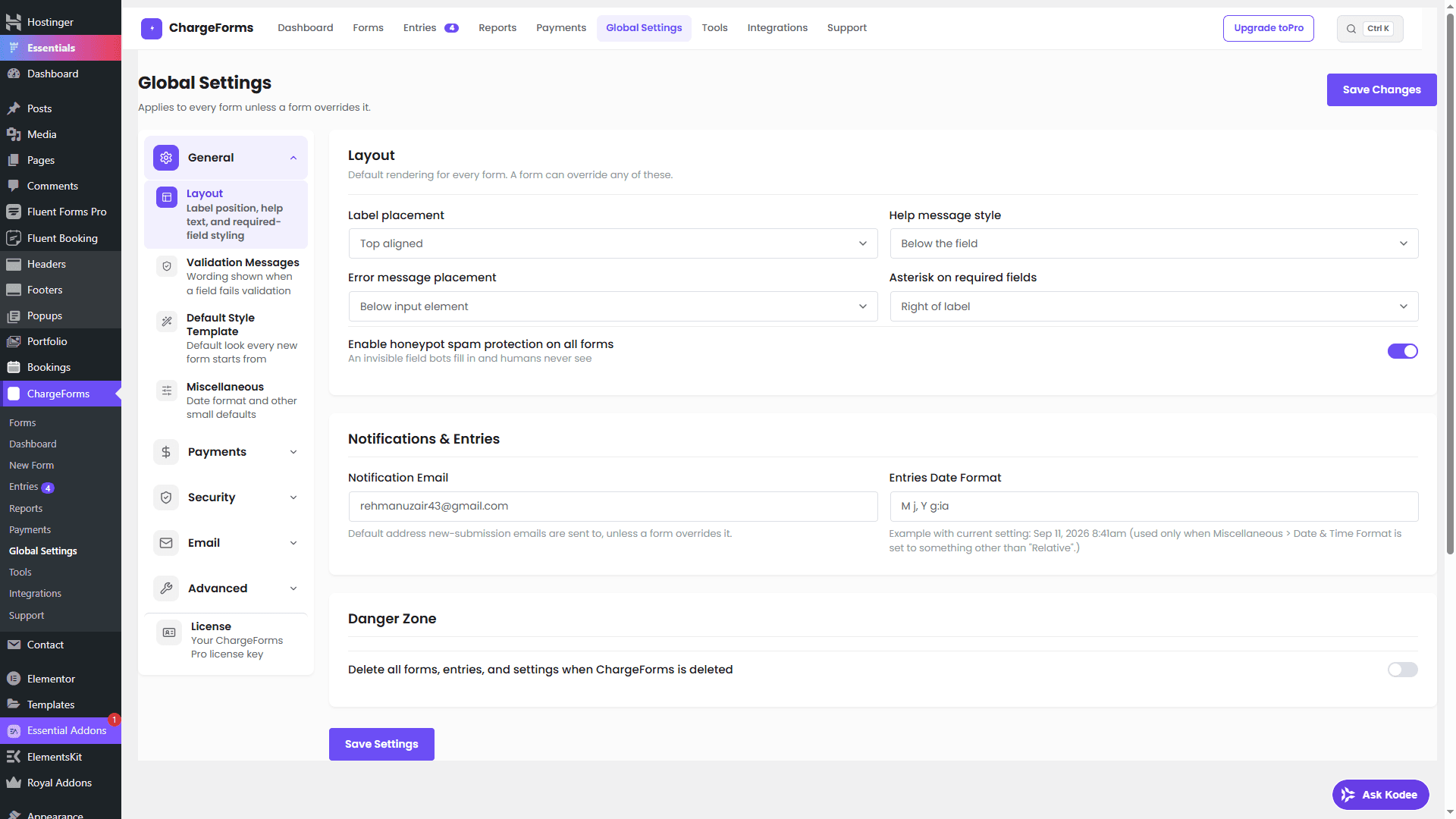
- Configure availability per form. Different forms often need different schedules — a form for haircuts and a form for consultations on the same site probably shouldn't share one availability config. Set slot length, buffer time, bookings-per-slot, minimum notice, and how far ahead bookings are allowed, then your actual working hours for each day of the week. Add date overrides for holidays or planned closures.
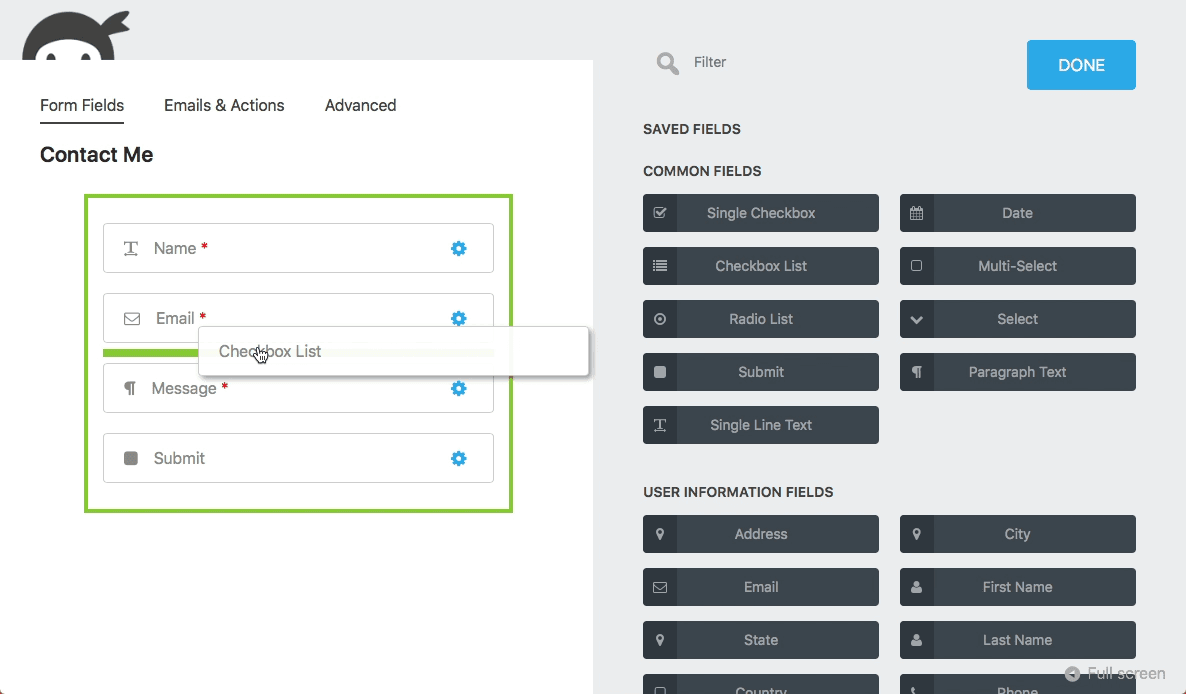
- Add the booking calendar field to the form in the builder, alongside whatever else the form needs — a service selector, contact fields, a payment field for a deposit.
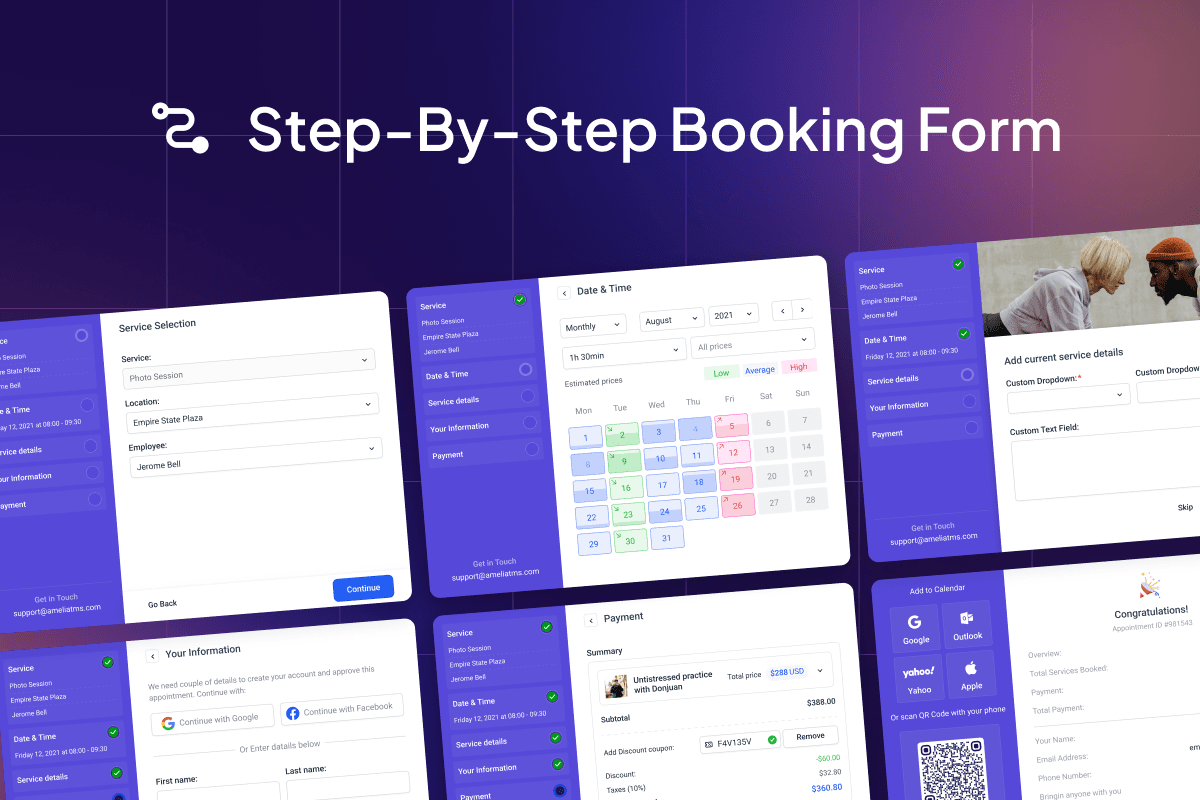
- Publish the form. A visitor picks a date, sees only the times that are genuinely still open (not a static list — computed against real existing bookings), and selects one.
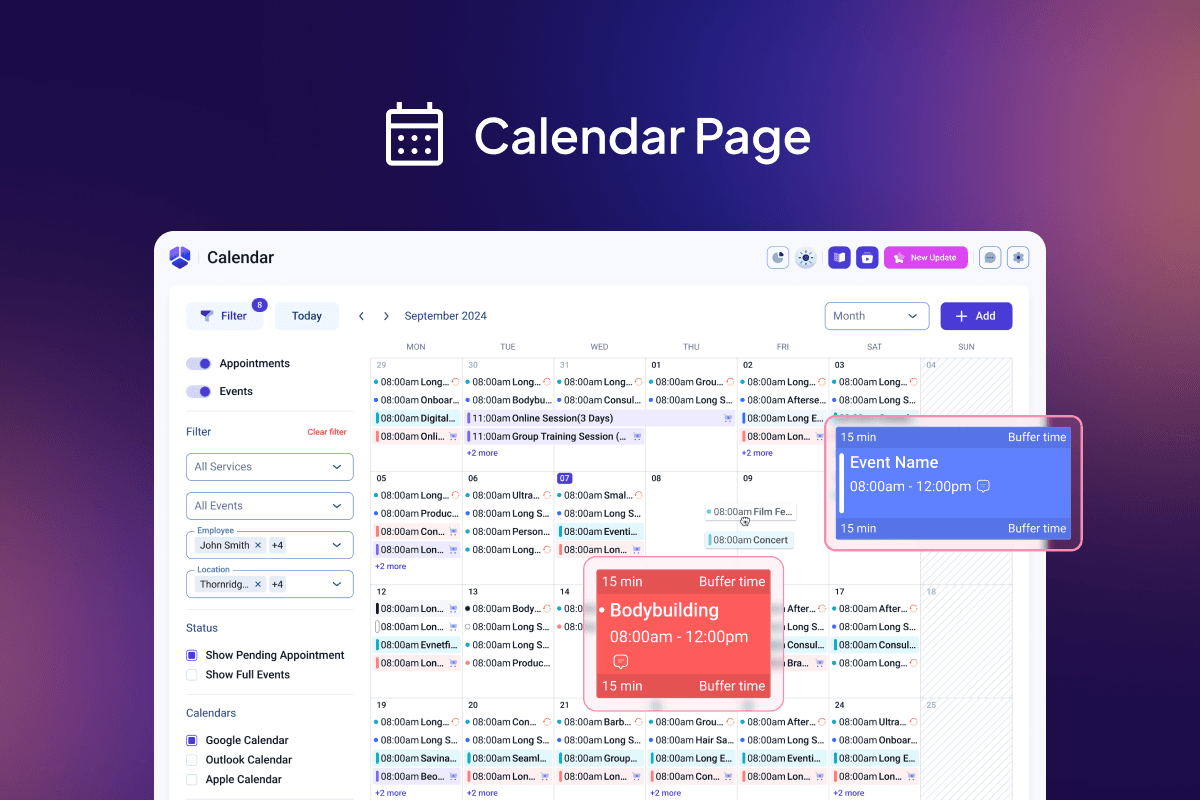
- Manage bookings from a dedicated screen, separate from (but linked to) your regular form entries — a day/week calendar view, not just a flat table, since the point of a booking system is seeing gaps and conflicts at a glance. From there: mark a booking complete, mark a no-show, or cancel it — cancelling should immediately free the slot back to availability and notify the customer.
Timezones: store one, display many
A booking system has exactly one correct source of truth for when an appointment actually happens: the business's own configured timezone. Every booking should be stored against that, consistently, regardless of who's booking it or from where. What changes per visitor is only the display — showing "2:00 PM" converted into whichever timezone the visitor's own browser reports, so a customer booking from a different timezone than the business sees times that make sense to them without the underlying stored appointment time ever being ambiguous.
Getting this backwards — storing times in whatever timezone happened to submit the form, or not accounting for daylight saving transitions — is a reliable way to end up with an appointment that's stored as "correct" but actually an hour off after a DST change. If you're evaluating a booking system, it's worth specifically testing a booking made across a DST boundary rather than assuming it's handled.
What's genuinely harder than it looks: rescheduling
Cancelling a booking is comparatively simple — release the slot, done. Rescheduling is not simply "cancel, then rebook" done automatically, because that's two separate operations with a gap between them: if the release succeeds but the new reservation fails (the requested new slot got taken in the meantime, say), the customer ends up with no appointment at all instead of either their old one or a new one. Done correctly, a reschedule needs the same atomic guarantee described above — release the old slot and claim the new one as a single operation that either fully succeeds or fully rolls back, leaving the customer with exactly one valid booking in every outcome.
Because of that, it's reasonable for a booking system to ship cancel and rebook as two separate, simpler, already-safe operations first, and add true atomic rescheduling later — a customer manually cancelling and then booking a new slot achieves the same end result, just with one extra click and a fresh confirmation email, rather than a single "reschedule" button that's actually built on a riskier two-step sequence under the hood. If you're choosing a booking tool, it's a fair question to ask directly: does rescheduling actually work atomically, or is it "cancel then rebook" wearing a single button?
Notifications that actually matter
At minimum, a booking system should send:
- A confirmation to the visitor immediately after booking, with the date/time (in their own timezone), the service, and — if self-service cancellation is supported — a working cancellation link.
- A reminder before the appointment, since this is one of the highest-leverage things a booking system does for reducing no-shows, and it requires the system to actually schedule a future action, not just react to the booking event in the moment.
- A new-booking alert to the business owner, the same way a new form submission normally would notify them.
- A cancellation alert to the business owner when a booking is cancelled, whether by the visitor or by staff.
These should go out through whatever email delivery is already configured for the rest of the form plugin — a booking system that requires a completely separate email setup just for appointment notifications is one more thing to configure and one more thing that can silently break.
The bottom line
The difference between "a form with date and time fields" and "a real booking system" comes down to one question: is anything actually preventing two people from claiming the same slot? If the answer is checking availability and reserving it are two separate steps, or if there's no real availability engine behind the calendar at all, it isn't a booking system yet — it's a booking-shaped intake form. Get the atomic reservation right, account for buffer time and working hours properly, store times in one consistent timezone, and be honest about what rescheduling actually does under the hood, and the rest — the calendar UI, the confirmation emails — is comparatively straightforward. See the conditional logic booking guide for the field-logic side of building a booking form, or the payments documentation for how deposit collection is verified server-side alongside a booking.
Frequently asked questions
What's the difference between a conditional-logic booking form and a real booking calendar?
A conditional-logic booking form (dropdowns for date and time, shown or hidden based on the selected service) collects a preference, not a reservation — nothing stops two visitors from both 'choosing' the same 2pm slot, since the form has no concept of what's actually still open. A real booking calendar field checks live availability against existing bookings before showing a time as selectable, and reserves that specific slot the moment someone books it, so it can't be double-booked.
Can two people book the same appointment slot by accident?
Not if the booking system does the reservation correctly. The critical detail is that the slot has to be checked and reserved as a single atomic database operation at the moment of submission — checking availability and then reserving it as two separate steps creates a race condition where two people submitting within the same second can both pass the availability check before either reservation is recorded. A form plugin's booking field needs to guard against this specifically, not just show 'realistic-looking' availability.
Do I need a separate booking plugin like Calendly or Acuity alongside my WordPress form plugin?
Not if your form plugin has a real booking field with its own availability engine — that was previously a real gap (see our conditional-logic booking guide for the earlier honest answer), but a dedicated booking add-on closes it without needing a second tool. You'd still reach for a separate dedicated booking plugin if you need things a form-based booking field doesn't do, like multi-staff calendar management across a large team or deep two-way sync with several external calendar providers at once.
How does buffer time between appointments work?
Buffer time is a configurable gap automatically blocked off after (and sometimes before) every booked appointment — for example, 15 minutes to clean a treatment room or drive to the next job — so the next visitor never sees a slot that's technically 'free' on the calendar but not actually usable in practice. It's set once as part of the availability configuration, not something you manage per booking.
What happens if someone needs to cancel or reschedule their appointment?
Cancellation should immediately release the slot back to general availability so someone else can book it, and notify the business owner. Rescheduling — moving an existing booking to a new time — is a meaningfully harder problem to get right, since it has to release the old slot and reserve the new one as a single all-or-nothing operation; if that's not implemented safely yet on whatever plugin you're using, cancel-and-rebook is a safe manual workaround that doesn't risk ending up with either two bookings or none.
Related posts
Contact Form 7 Is in Maintenance Mode: What That Actually Means
Contact Form 7's creator confirmed at WordCamp Asia 2026 that version 6.2 is the last feature release — the plugin now gets security patches only. Here's what changes, what doesn't, and what to actually do about it.